
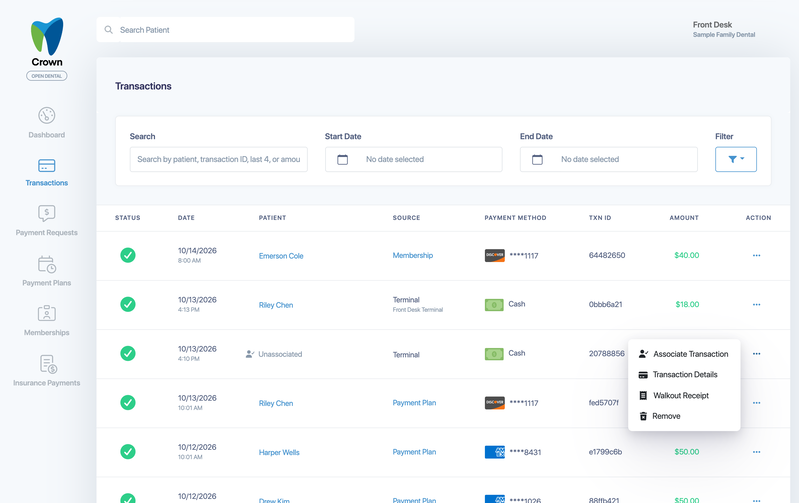
Payments taken directly on your GoDaddy Poynt terminal, instead of being sent from Crown Connect, aren't linked to a patient. They appear in Transactions as Unassociated. Associate the payment with the right patient so it shows on their account.
Find unassociated payments
- Select Transactions in the left menu.
- Select Filter, then under Filter choose Unassociated Only. If you don't see this option, contact Moolah support.
Associate a payment with a patient
- On the payment's row, select ..., then Associate Transaction.
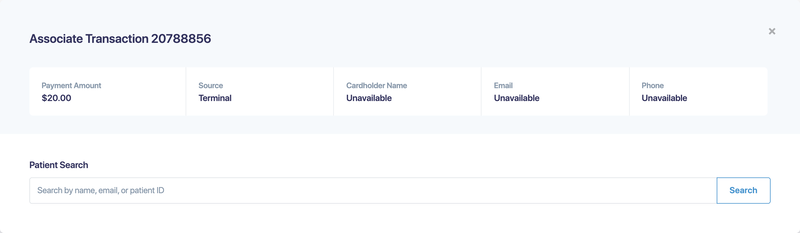
- Check the payment details at the top: amount, source and, when available, the cardholder's name, email and phone.
- Under Patient Search, search by name, email or patient ID, then select Search.
- Choose the patient to associate the payment with.
- Choose whether Crown should post the payment to your practice-management system, send the patient a receipt, or both.
- Confirm the association.
Avoid unassociated payments
Whenever you can, start terminal payments from the patient's Terminal Payment tab in Crown. The payment is then linked to the patient and posted to your practice-management system automatically. See Take a payment on your GoDaddy Poynt terminal.