
You can change a plan once and decide exactly which existing members follow the change, either today or on a date you schedule. Plan changes are made in the Plan Change window in Membership Administration.
Make a plan change
- Select your name in the menu at the top right, then select Membership Administration.
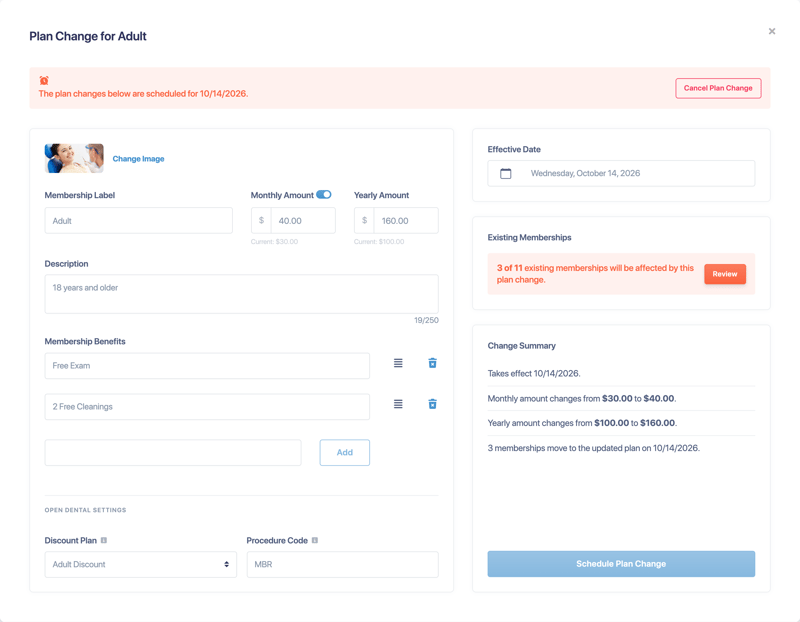
- Select Edit Membership on the plan's card. The Plan Change for [plan name] window opens.
- Make your changes. You can update the Membership Label, Monthly Amount, Yearly Amount, Description, Membership Benefits, and the Open Dental Discount Plan and Procedure Code, all as one change. Each price shows its current amount below it.
- Choose an Effective Date. Today's date applies the change now. A future date schedules it.
- Under Existing Memberships, select Review to choose how current members take part and which ones are included (see below), then select Done.
- Check the Change Summary. It lists everything you've changed and how many memberships will move.
- Select Apply Plan Change, or Schedule Plan Change for a future date.
Choose how existing members take part
In the Existing Memberships window, choose a Participation option:
- On Effective Date (default): Their price changes on the effective date.
- On Renewal: Each member keeps their current price until their own renewal, then moves to the new price. Memberships set to expire, which don't renew, aren't included.
- Exclude: No existing memberships change. Only new enrollments use the updated plan.
For a future-dated On Effective Date change, you can also choose whether to move memberships that enroll between now and the effective date. This is set to No unless you change it.
Choose which members are included
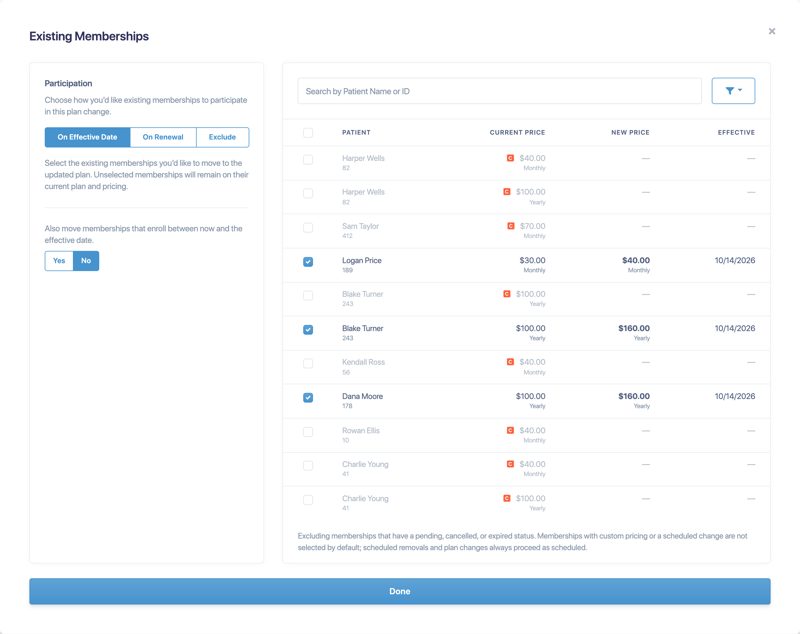
- Use the filter to narrow the list by Status (Active, Past Due, Paused), Billing (Monthly or Yearly) and Pricing (Standard or Custom). Search by patient name or ID.
- Each row shows the member's Current Price, New Price and the date the change takes effect.
- Ticked members get the new price. Unticked members keep their current price.
- Members with custom pricing are marked with a C. They, and members who already have a scheduled price change, start unticked so you don't overwrite them by accident. If you tick one, the plan change replaces their own scheduled change.
- Pending, canceled and expired memberships aren't listed.
Important: A standard-priced member you leave unticked is locked at their current price and won't follow future price changes to the plan. If you save without ticking anyone, Crown Connect asks you to confirm first.
Manage a scheduled change
- A plan with a scheduled change shows "A plan change is scheduled for [date]" on its card. Select Edit Scheduled Change to open it.
- The window shows the banner "The plan changes below are scheduled for [date]." Adjust the change, then save it.
- Select Cancel Plan Change to remove the change from every membership on the plan. Individual price changes it replaced are not restored.
Leave one member out of a plan-wide change
On a member's page, use Remove from Global Membership Change to take that member out of a plan-wide change. Use Include in Global Membership Change to add them back.
To change the plan or price for just one patient, see Manage a patient's membership.
Good to know
- Each payment's amount is locked in when billing starts. A plan change made while payments are running can't change a charge that's already in progress.
- The membership agreement explains to patients that plan fees and benefits can change. See Customize your membership agreement.