
Set up a payment plan so a patient can pay a balance in installments. Crown charges the card on file on each billing date, sends reminders, and follows up on missed payments for you.
This article covers Crown-managed plans, which you build in Crown. If you create payment plans in Open Dental, see Open Dental payment plans in Crown.
Choose the plan type
Open the patient and select the Payment Plan tab. If your practice uses Open Dental, choose Open Dental Plan or Crown-Managed Plan.
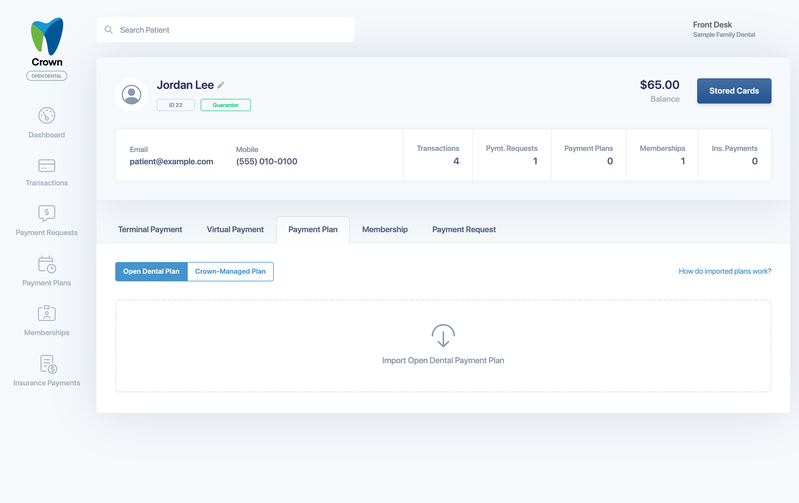
Crown-managed plans don't create a matching payment plan in Open Dental. Payments post to the patient's ledger only.
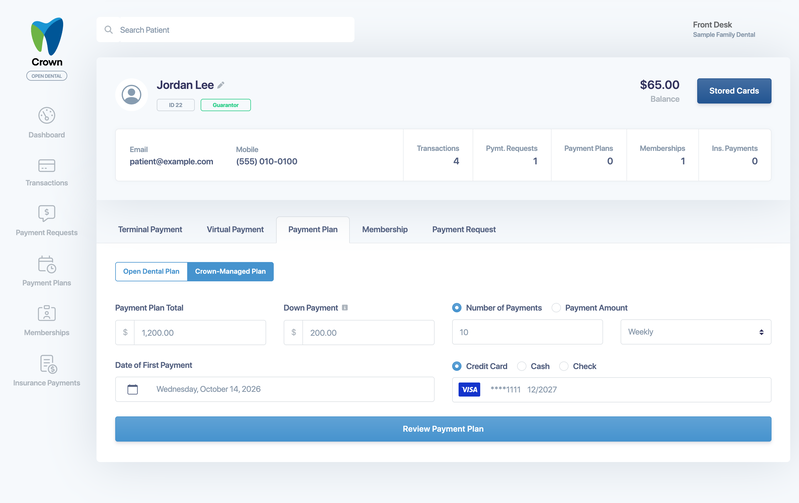
Enter the plan details
- Payment Plan Total: the full amount the patient will pay. It's filled in with their balance.
- Down Payment: optional. A down payment is collected when the plan is created, not on the date of the first payment.
- Choose Number of Payments to split the remaining balance evenly, or Payment Amount to set a fixed amount per payment. With a fixed amount, any remainder becomes a smaller final payment.
- Choose how often to bill: Weekly, Biweekly, Monthly, Quarterly or Yearly.
- Date of First Payment: today or a future date.
- Choose how the patient pays:
- Credit Card: choose one of the patient's stored cards. Crown charges it automatically on each billing date.
- Cash or Check: enter the amount you're receiving today (and the check number). It's applied as soon as the plan is created. Later payments are recorded by your office.
- Select Review Payment Plan.
If the patient doesn't have a stored card yet, select Stored Cards on their page to add one, or send them a request to store their card securely.
Review the schedule
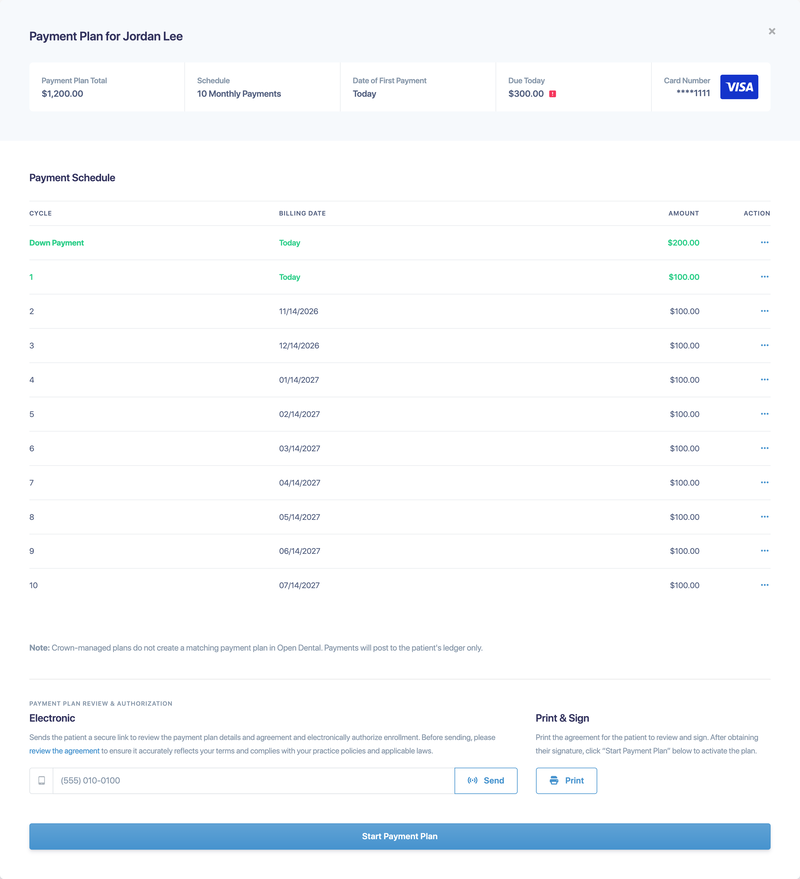
The review shows the plan total, the schedule, the date of the first payment, the amount due today, and every billing date and amount. Before you start the plan, you can select ... on a payment to change its date or amount. If your practice surcharges cards, the surcharge on each payment is shown.
Get the patient's authorization
Under Payment Plan Review & Authorization, choose how the patient approves the plan:
- Electronic: check the mobile number and select Send. The patient gets a secure link to review the plan and agreement and sign electronically. Crown shows when their authorization has been captured.
- Print & Sign: select Print, have the patient review and sign the agreement, and keep the signed copy.
Then select Start Payment Plan. If you used Print & Sign, confirm Start without Electronic Authorization. Crown charges the down payment and any payment due today, and confirms that the plan was created. The patient is emailed a copy of the agreement.
Review your agreement before you send it, to make sure it reflects your terms and practice policies. See Set up payment plan reminders and past-due notifications.
If the first payment is declined
If the down payment or first payment is declined, the plan isn't created. Crown shows the reason. Ask the patient for another card and try again.