
The Memberships page lists every membership in your practice. Use the status tiles, search box and filters to find what you need, and export the list to PDF or CSV.
Open the membership list
Select Memberships in the left menu.
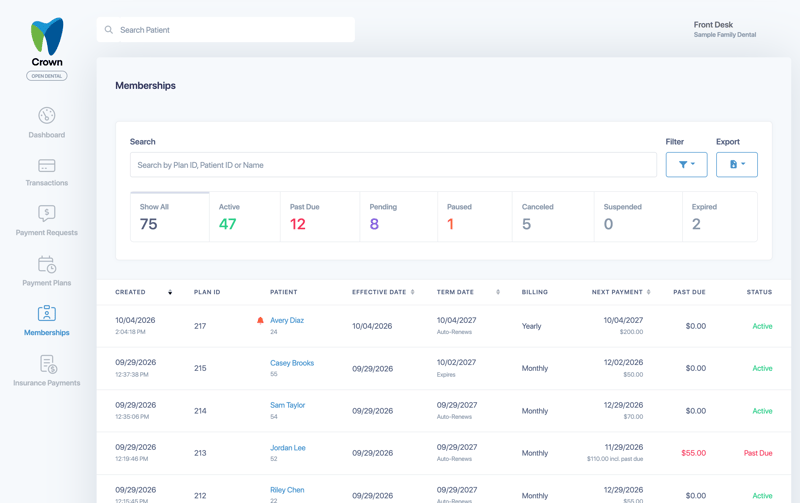
Status tiles
The tiles show how many memberships are in each status: Show All, Active, Past Due, Pending, Paused, Canceled, Suspended and Expired. Select a tile to show only those memberships. For what each status means, see Memberships overview.
Search
One search box covers everything. Search by Plan ID, patient or practice-management-system Patient ID, name or email.
Filter
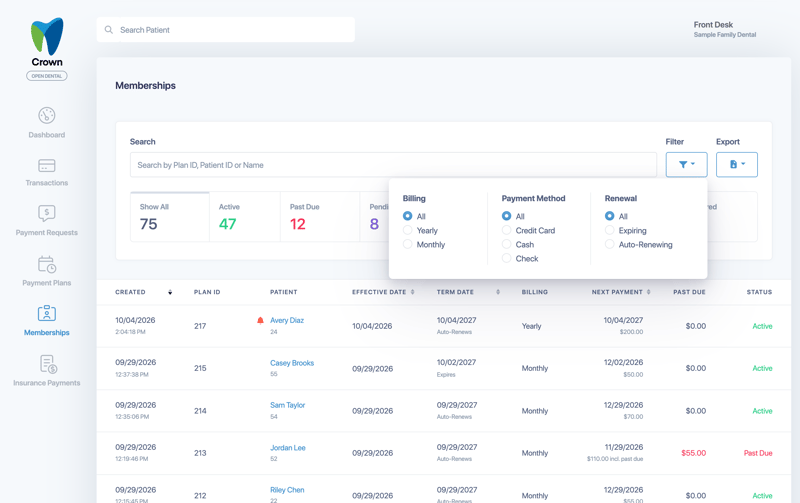
Select Filter to narrow the list by:
- Billing: All, Yearly or Monthly
- Payment Method: All, Credit Card, Cash or Check
- Renewal: All, Expiring or Auto-Renewing
Read the list
- Created: When the membership was created
- Plan ID: The membership's ID (previously called Membership ID)
- Patient: The patient's name and ID. An icon before the name means a change is scheduled.
- Effective Date: When the membership started or starts
- Term Date: When the current term ends, and whether it Auto-Renews or Expires
- Billing: Monthly or Yearly
- Next Payment: The next payment date and amount, marked "incl. past due" when it includes a past-due amount
- Past Due: The balance owed from missed payments
- Status: The membership's current status
Select a column heading to sort by it. Select a patient's name to open the membership. See Manage a patient's membership.
Export the list
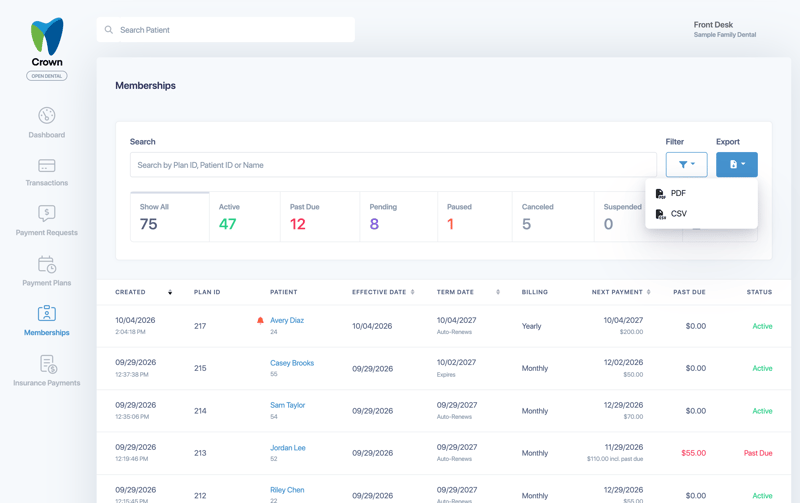
Select Export, then choose PDF or CSV. The export includes your full membership roster, past-due amounts and upcoming changes.
Good to know:
- In exports, "Patient ID" is the patient's ID in your practice-management system.
- Totals include scheduled changes, so they may differ from reports you ran before this release.