
To create a membership plan, follow these steps:
- Open the patient's profile in Crown.
- Select the Membership tab.
Within the Membership tab, you will see two options for creating a membership:
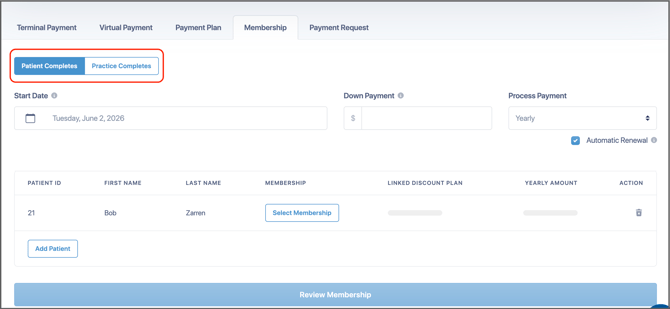
Practice Completes
Select Practice Completes if the practice will enter all membership details, including payment information.
Once the membership has been created and reviewed with the patient, the patient will accept and sign the agreement in person.
Patient Completes
Select Patient Completes if the practice will create the membership, but the patient will provide their own payment information and accept the agreement at a later time.
After the patient accepts the membership, the practice must open the patient-approved membership and activate it.
Enter Membership Details
After selecting either Practice Completes or Patient Completes:
- Enter the Total Amount.
- Enter the Down Payment Amount (if applicable).
- Enter the payment information (Practice Completes only).
- Click Review Membership.
Important: Any amount entered in the Down Payment field will be charged when the patient accepts the membership. This field should not be used to record a down payment that has already been collected.
Review and Activate
Review the membership details and continue through the setup process.
Once completed, the membership will begin on the selected Activation Date.
Note: All memberships are stored in Crown, and their detials can be viewed at any time. This article explains all membership features in Crown at length: https://kb.moolah.cc/en/article/how-to-view-membership-authorizations