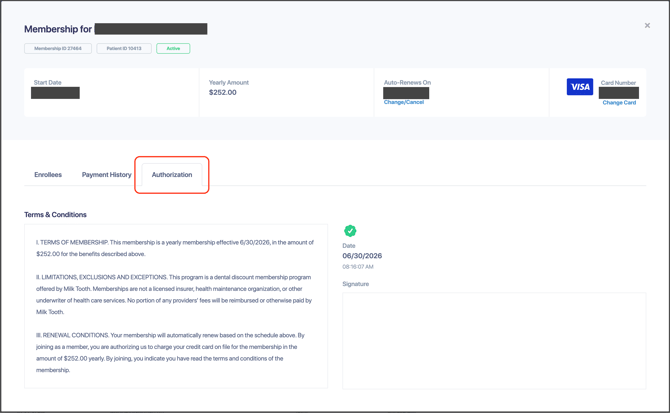
If you want to view the agreement for a patient who already signed a membership authorization, it will be stored in the membership tab. On the left hand side of Crown, click on Memberships. Then, search for the patient you are looking for. Finally, select the active membership and click Authorization.
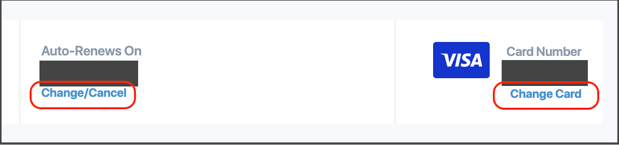
From this screen, auto renew can be changed by clicking the Change/Cancel button, and the card attached to the membership can be changed with the Change Card button.
On Open Dental, the "Family" section will show the active membership/discount plan for the patient.
Additionally, Membership payments can be posted to the patient's ledger, and can be offset by a procedure code so it doesn't reduce their balance. By linking the membership to an OD discount plan, the patient is automatically added to the discount plan when the Membership Plan is started.
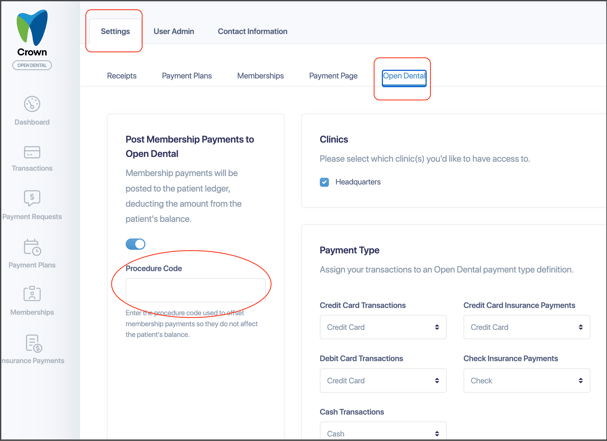
To do this, go to your Settings in Crown, click on Open Dental in settings, and on the left side of the window you will see a space where an Open Dental Code can be input so Crown will know what code to post Memberships to.