
The Payment Requests page lists every payment request your practice has sent. Use it to see what's been paid, send a reminder, or cancel a request.
Find a payment request
- Select Payment Requests in the left menu.
- Choose Unpaid or Paid under Payment Status.
- To narrow the list, search by patient, amount, phone or email, or pick a Start Date and End Date.
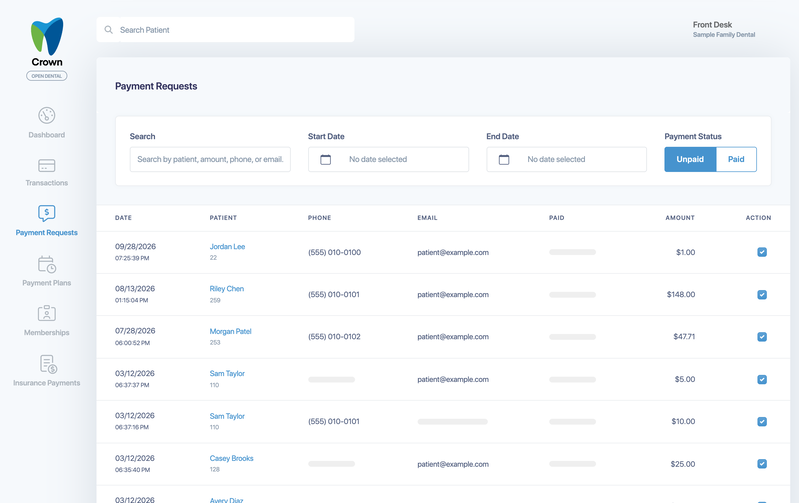
Each request shows the date it was sent, the patient, the phone and email it was sent to, the date it was paid, and the amount. Select a patient's name to open their account. You can also see a patient's requests by selecting Pymt. Requests on their page.
Send a reminder
- On the Unpaid list, every request starts checked. Uncheck any request you don't want to remind.
- Select Action, then Send Reminder.
The patient gets the same request again, by the same text and email. Crown doesn't send payment request reminders automatically, so send one when a request has been waiting a while.
Cancel a request
- On the Unpaid list, every request starts checked. Uncheck every request you want to keep, so only the ones to cancel stay checked.
- Select Action, then Cancel Request, and confirm.
If the patient opens a canceled request, they're told it has been canceled and asked to contact your office. Canceled requests can't be reopened, so send a new request if needed.
When a patient pays
- The request moves to the Paid list with the date it was paid.
- The payment appears in Transactions with the source Payment Request.
- The payment posts to your practice-management system: to the procedures you allocated, or as an unallocated payment.
- If the patient opens the link again, they see that the payment was already processed, with the transaction ID.
Good to know
- A request stays open until the patient pays or you cancel it.
- Before you select Action, always check which requests are selected. All unpaid requests on the page are selected when the list opens.
- Patients pay the full requested amount. To collect a different amount, cancel the request and send a new one.
- For Open Dental practices, each request and reminder is logged in the patient's commlog.