
Every membership includes a signed agreement. Crown Connect comes with a standard membership agreement that you can use as is or edit to fit your office. Patients get it by email as a PDF and sign it in the patient portal or in your office.
The standard agreement
The standard agreement was rewritten for this release. It covers:
- Membership details, including family memberships that cover more than one patient
- Membership benefits
- Billing by card, bank account, cash or check, including card surcharges
- Changes to the membership
- Failed payments, grace periods and suspension
- Cancellation and termination
Late fees are no longer part of the standard agreement.
If you used the standard agreement before this release, you were moved to the new version automatically. If you customized yours, your text was kept, and you'll see a note that it differs from the new standard.
Important: The standard agreement is provided for informational purposes only and isn't legal advice. Have an independent, licensed attorney in your state or province review it before you use it.
Edit your agreement
- Select your name in the menu at the top right, then select Settings.
- Select the Memberships tab, then select Agreement on the left.
- Select Edit Agreement.
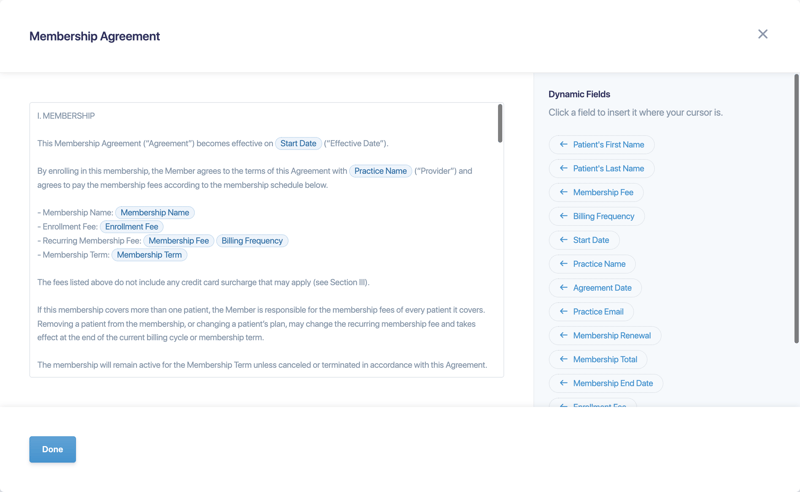
- Edit the text. To insert patient or membership details, place your cursor where you want them, then select a field under Dynamic Fields.
- Select Done, then select Save Agreement.
Dynamic fields
Dynamic fields are filled in automatically for each patient. In the preview, highlighted values are sample data.
Patient
- Patient's First Name
- Patient's Last Name
Membership
- Membership Name
- Membership Fee
- Billing Frequency
- Enrollment Fee
- Membership Term
- Membership Total
- Start Date
- Membership End Date
- Membership Renewal
Practice
- Practice Name
- Practice Email
- Agreement Date
Go back to the standard agreement
Select Reset to default on the Agreement tab to replace your text with the current standard agreement.
How patients receive and sign the agreement
- Patient completes enrollment: the patient receives a short email with the agreement attached as a PDF. In the portal, they see exactly what they'll pay today and must sign before paying.
- Practice completes enrollment: select Print & Sign to print the agreement for the patient to sign in your office, then select Start Membership.
See Enroll a patient in a membership for the full steps.
View, email or print a signed agreement
- Open the patient's membership. You can open it from Memberships in the left menu or from the patient's profile.
- Select Manage Plan, then select View Agreement.
- Choose Email to send it to the patient, or Print.