
This article explains what happens when a membership payment is declined, how to collect or record a payment, how to correct one, and how to restart a canceled or suspended membership.
When a payment is declined
- Membership payments run at 8:00 AM in your practice's time zone.
- If a payment is declined, the membership is marked Past Due at 7:00 PM that day, and a note is added to the patient's chart.
- What happens next depends on your Membership Settings:
- Suspend After Declined Payments is off (the default): the membership stays active and past due, keeps its original term end date, and keeps building a balance until payment is collected.
- Suspend After Declined Payments is on: the membership stays past due through your grace period, with an optional daily retry, then is suspended. Discount plan benefits stay active through the last day of the grace period.
Collect a past-due balance
A past-due membership shows a banner with the balance owed.
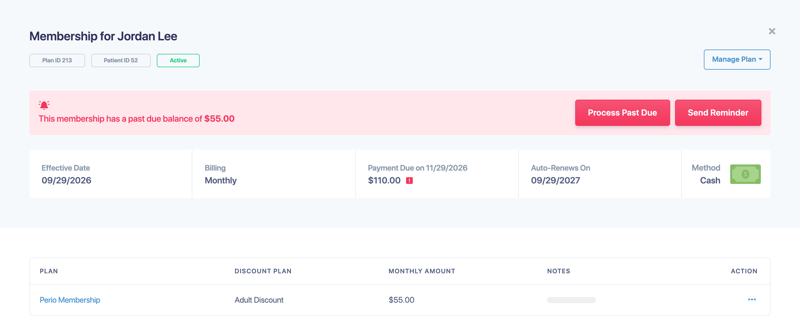
- Process Past Due: collect the past-due balance now.
- Send Reminder: email the patient a reminder. Patients can update their card from the reminder link.
On past-due membership pages in the patient portal, any card surcharge is shown before the patient pays.
Take a payment
- Open the membership, select Manage Plan, then select Make a Payment.
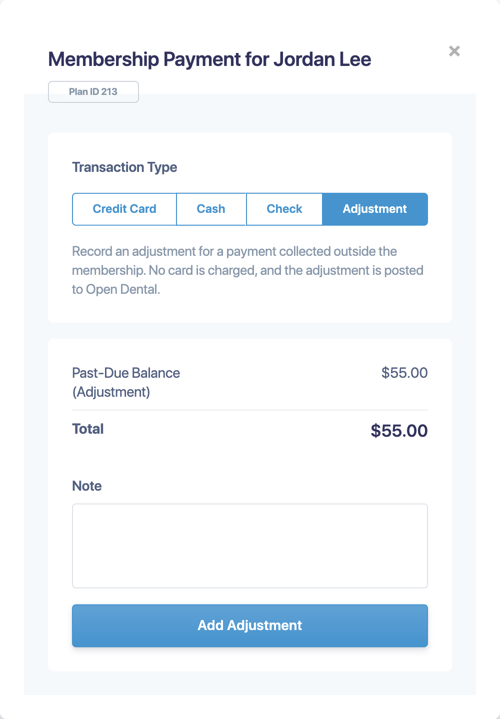
- Choose the Transaction Type:
- Credit Card: Charges the card on file. Select Change to use another stored card or a new one. For cash and check members, a card used here is for this one payment only and doesn't change how the membership bills.
- Cash: Records a cash payment.
- Check: Records a check payment. Enter the Check Number.
- Adjustment: Records a payment collected outside the membership. No card is charged, and the adjustment posts to Open Dental.
- Check the amount and Total, and add a Note if you like.
- Select Process Payment, Record Cash Payment, Record Check Payment or Add Adjustment.
Correct a payment
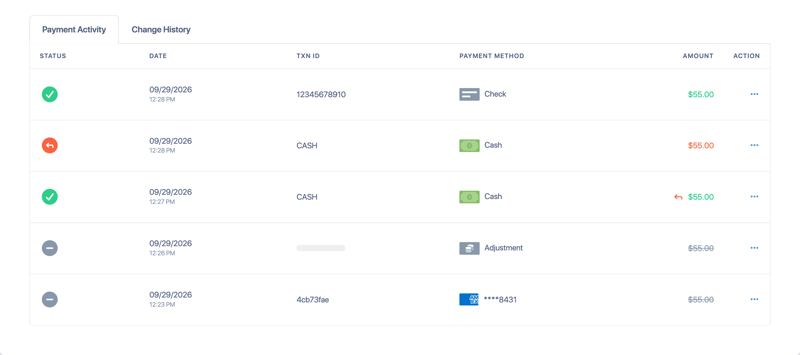
Corrections are made from the membership's Payment Activity tab. Select ... on the payment's row:
- Refund a cash or check payment.
- Void an adjustment.
Refunded and voided entries stay in the list so you have a complete record.
Restart a membership
You can restart a canceled or suspended membership with your choice of pricing, renewal and card.
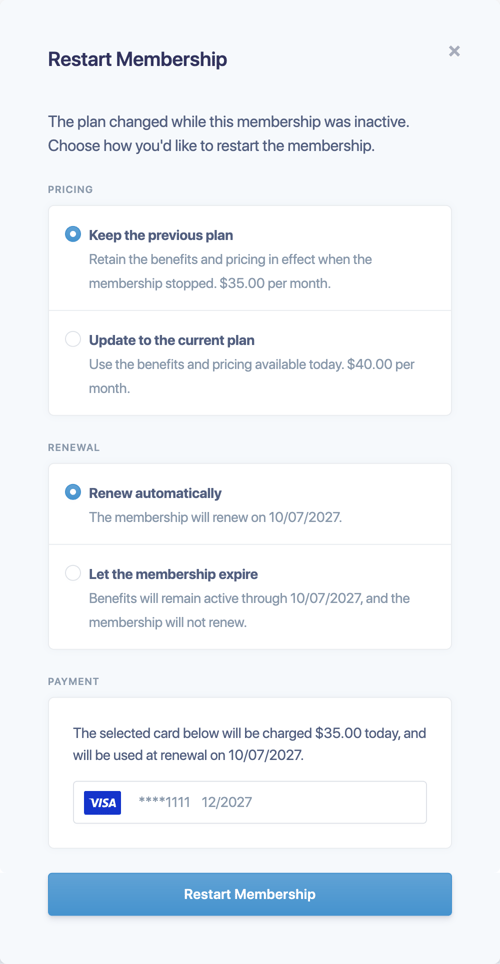
- Open the membership, select Manage Plan, then select Restart Membership.
- If the plan changed while the membership was inactive, choose the Pricing:
- Keep the previous plan: keep the benefits and price in effect when the membership stopped.
- Update to the current plan: use today's benefits and price.
- Choose the Renewal: Renew automatically, or Let the membership expire at the end of the new term.
- Under Payment, choose the card. The amount charged today is shown.
- Select Restart Membership.
If Collect Past-Due Payments When Restarting is on in Membership Settings, the payments missed before suspension are collected, at the restart price, along with the first new payment. If it's off, they're written off.
Restarting sets the membership back to Active and updates the patient's Open Dental discount plan term date to match.