
Payment plan settings control the reminders patients get before a payment, what happens to missed payments, the notifications Crown sends when a plan is past due, and your payment plan agreement. They apply to every payment plan in your practice.
Open payment plan settings
- Select your name in the menu at the top right, then select Settings.
- On the Settings tab, select Payment Plans.
Payment reminders and past-due handling
Select Reminders & Past Due Settings.
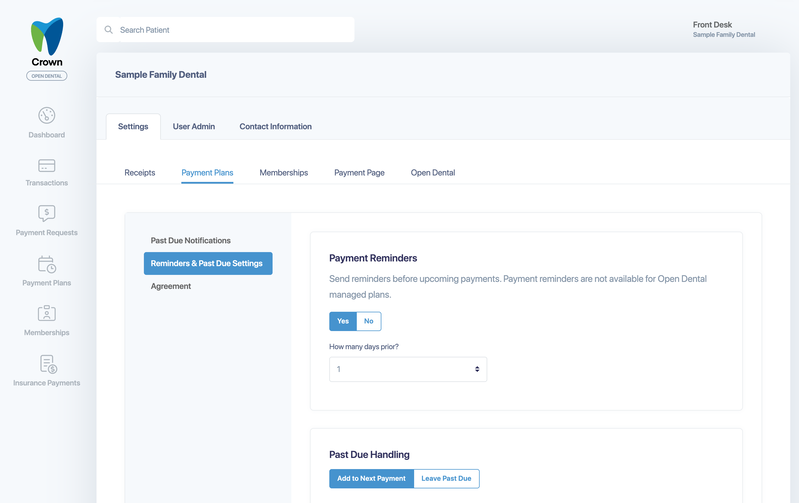
- Payment Reminders: choose Yes to remind patients before each upcoming payment, and set How many days prior? (1 to 6 days). Payment reminders aren't available for Open Dental managed plans.
- Past Due Handling:
- Add to Next Payment: the next scheduled payment includes any past-due balance.
- Leave Past Due: the next scheduled payment includes only the scheduled amount, and the past-due balance stays outstanding.
Select Save Reminders & Past Due Settings.
Past-due notifications
Select Past Due Notifications to see the emails Crown sends when a payment is missed. Each notification includes a Make a Payment button that takes the patient to a secure page where they can pay the past-due balance.
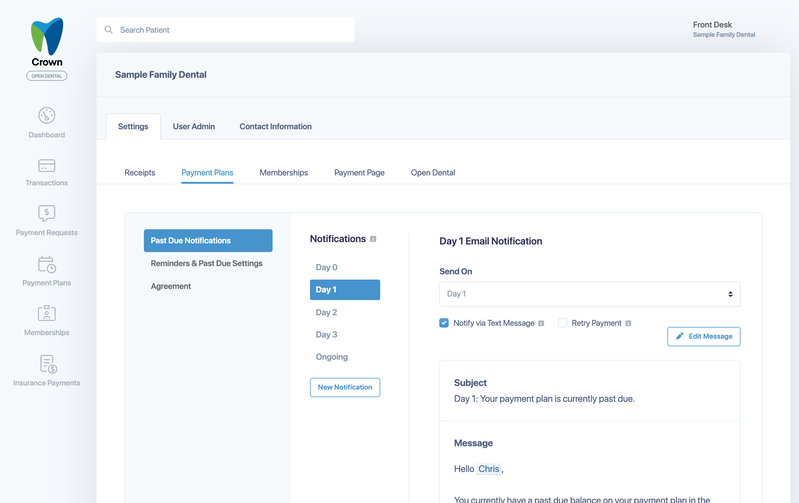
- Day 0 is sent the day a payment plan first becomes past due.
- Add notifications for later days (for example Day 1, Day 2, Day 3) with New Notification, and choose the day under Send On (Day 1 to Day 27). Only one notification can be sent on each day.
- Ongoing is sent when a plan has finished all its scheduled payments but still has a past-due balance. Choose how often under Send Every.
- Notifications repeat for each missed payment until the plan is canceled or the past-due balance is paid.
For each notification, you can also turn on:
- Notify via Text Message: also send a standard text with a secure payment link. The text wording can't be changed, and it's sent only when the patient has a mobile number on file.
- Retry Payment (Day 1 and later): try the card on file again before sending the notification. If the payment goes through, no notification is sent. Not available for cash or check plans.
Select Edit Message to change the email subject and wording, where available. Notifications that use the default template can't be edited. Highlighted values in the preview are sample data, replaced with each patient's details. Keep the payment link in your message so patients can pay. Select Save Notification (or Create Notification for a new one) when you're done.
A patient gets at most one past-due reminder per plan each day. To stop reminders for one plan, check Pause Notifications on that plan.
Payment plan agreement
Select Agreement to see the agreement patients authorize when they start a plan. Highlighted values, like the patient's name and plan total, are filled in for each plan. Select Edit Agreement to change the wording, then Save Agreement.
The agreement is provided for informational purposes and isn't legal advice. Review it with your own attorney to make sure it reflects your terms and complies with the laws where you practice.