
Send a patient a secure link by text message, email or both, so they can pay their balance online with a card. When they pay, Crown marks the request paid and posts the payment to your practice-management system.
Send a payment request
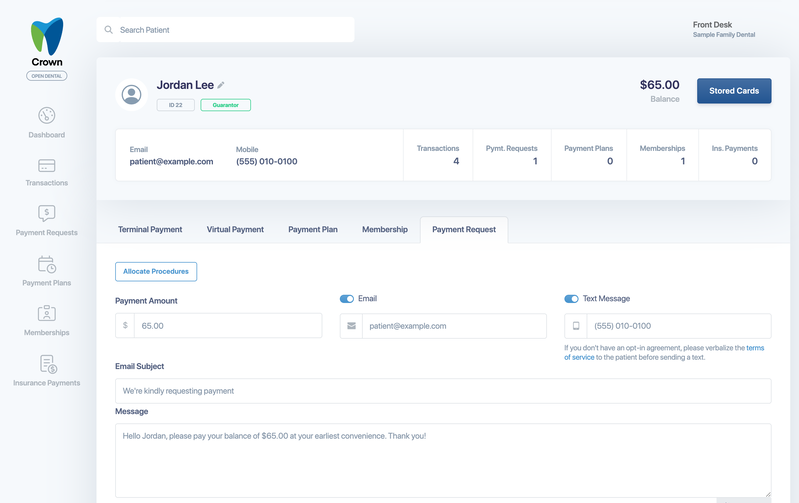
- From the patient's profile, select the Payment Request tab.
- Check the Payment Amount. It's filled in with the patient's balance, and you can change it. To apply the payment to specific procedures, select Allocate Procedures. See Apply a payment to procedures.
- Choose how to send it:
- Email: turn it on and check the email address.
- Text Message: turn it on and check the mobile number.
- Check the Message, and the Email Subject when sending by email. The message appears in the notification and on the patient's payment page. To use a saved message, select Templates.
- Optional: turn on Attach Statement and select a statement (see below).
- Select Send Notification(s).
Crown confirms that the request was sent, and to which contact details.
Before sending a text
If the patient hasn't signed an opt-in agreement for text messages, read them the terms of service before you send a text. Patients can reply STOP to opt out.
Use message templates
Templates save time and keep your wording consistent.
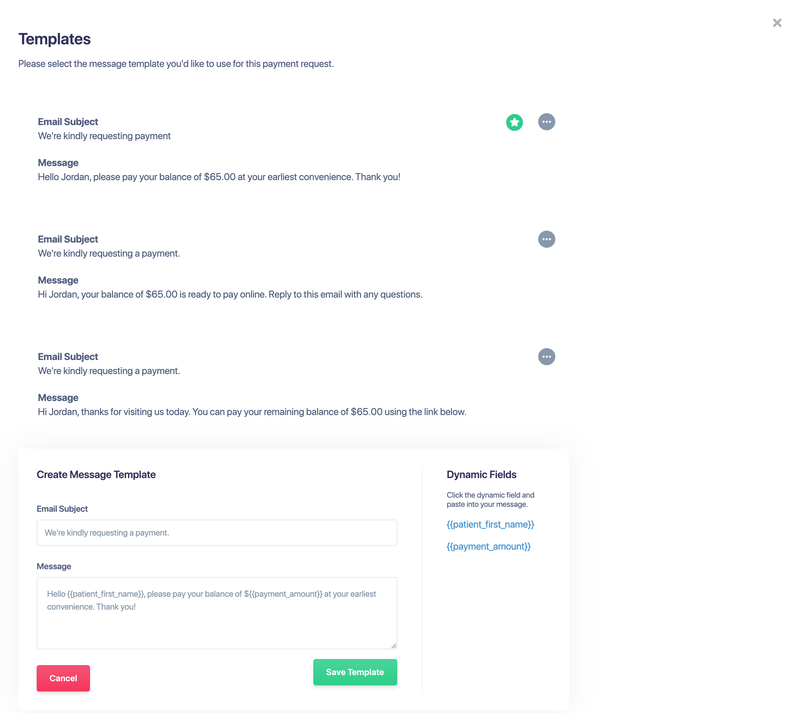
- Select Templates below the message.
- Select a template to use it for this request.
- To add a template, select Create Message Template, enter the Email Subject and Message, then select Save Template.
Add Dynamic Fields to fill in details automatically: and . Select ... on a template to Edit it, Make Default, or Delete it. Your default template is marked with a star.
Attach a statement
- Turn on Attach Statement, then choose Select Statement.
- Choose the statement. The payment amount changes to the statement balance. If you change the amount afterward, Crown warns you that it doesn't match the statement.
To protect their information, the patient must enter their date of birth before they can download the statement.
What the patient sees
- A text or email from your practice with the amount and a link to pay.
- A secure payment page showing your message and the amount. They pay the full requested amount by card. Apple Pay is offered when your practice doesn't surcharge cards.
- If your practice surcharges cards, the surcharge is shown before they pay, with the option to use a debit card instead.
- If your practice allows it, they can save their card for future payments.
- If their card is declined, they see the reason and can try again.
Next, see Track, remind and cancel payment requests.