
Use the virtual terminal to charge a card without the patient present, for example over the phone. You can charge a card the patient has stored with your practice, or enter a card for a one-time payment.
Charge a stored card
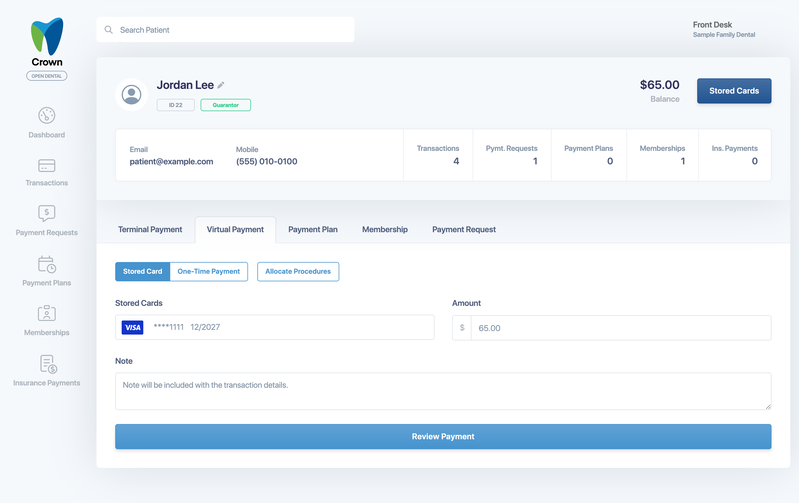
- From the patient's profile, select the Virtual Payment tab. Stored Card is selected.
- Under Stored Cards, choose the card. The patient's default card is selected first.
- Check the Amount. It's filled in with the patient's balance, and you can change it.
- Optional: select Allocate Procedures to apply the payment to specific procedures. See Apply a payment to procedures.
- Optional: add a Note. It's saved with the transaction details.
- Select Review Payment.
Enter a card for a one-time payment
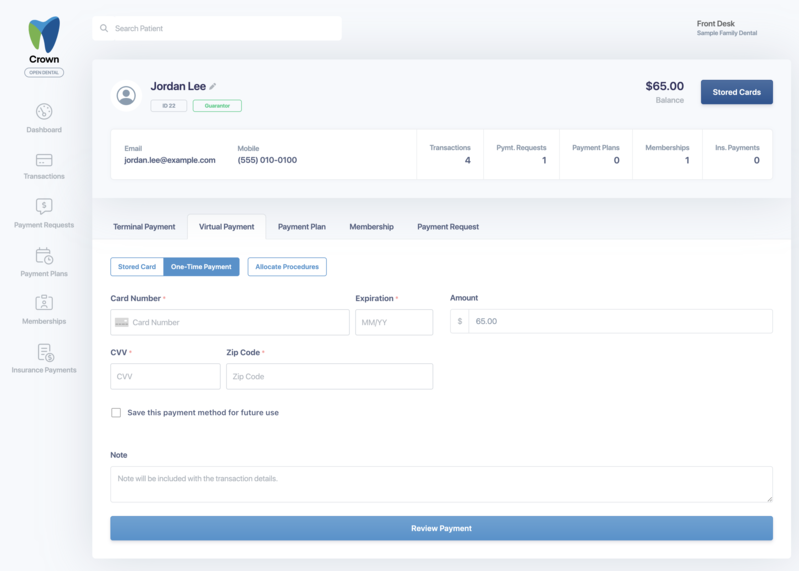
- On the Virtual Payment tab, select One-Time Payment.
- Enter the Card Number, Expiration, CVV and Zip Code.
- Check the Amount, and add a Note if you like.
- To keep the card for future payments, check Save this payment method for future use. Only save a card when the patient has agreed.
- Select Review Payment.
Review and process the payment
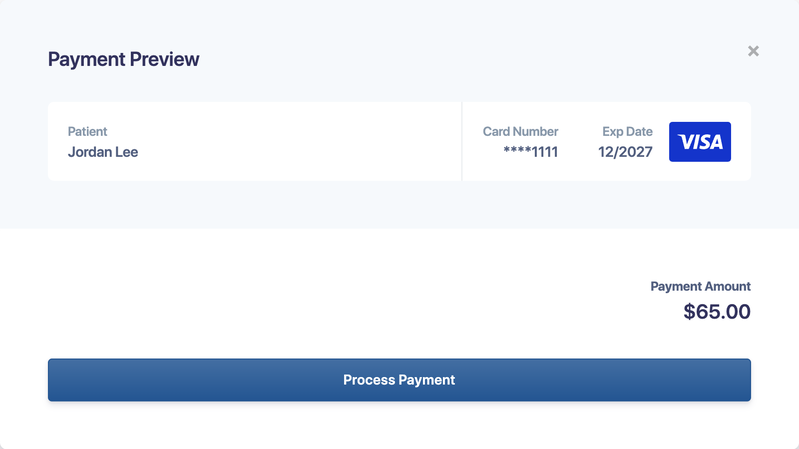
The Payment Preview shows the patient, the card and the payment amount. If you allocated procedures, they're listed too. If your practice surcharges cards, the preview also shows the subtotal, the surcharge and the total.
Check the details, then select Process Payment.
After the payment
- Transaction Approved: the card was charged, and the transaction ID is shown. Crown emails a receipt to the patient's email address on file.
- Transaction Declined: the card was declined, with the reason from the card processor. The form resets so you can try another card.
Approved payments post to your practice-management system the same way as terminal payments: to the procedures you allocated, or as an unallocated payment.
Good to know
- Membership payments aren't taken through the virtual terminal. Use Make a Payment on the patient's membership instead.
- To add or remove a patient's saved cards, select Stored Cards on the patient's profile.