Storing a Patient's Payment Card
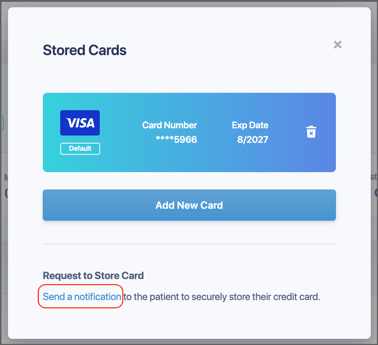
You can add, view, and manage a patient's stored payment cards directly from their profile in Crown.
Add or Edit a Stored Card
- Navigate to the patient's profile in Crown.
- In the upper-right corner of the profile, click Stored Cards.
- A window will open displaying any existing stored cards. From here, you can:
- View stored cards
- Edit existing cards
- Add a new card

4. Enter or update the card information as needed.
5. Click Add Card to save the card.
Request a Patient to Add Their Own Card
Patients can securely add their own payment card information through a notification sent from Crown.
- Navigate to the patient's profile.
- Click Stored Cards.
- At the bottom of the Stored Cards window, click Send a Notification.
This sends a secure text message to the patient, allowing them to enter their card information themselves.