
Storing a patient's card lets you use it again for future payments without asking for it each time. You can view and manage a patient's stored cards from their profile in Crown Connect.
There are three ways to store a card: add it yourself in Crown, ask the patient to add it, or save it while you take a payment on your terminal.
Add or edit a stored card
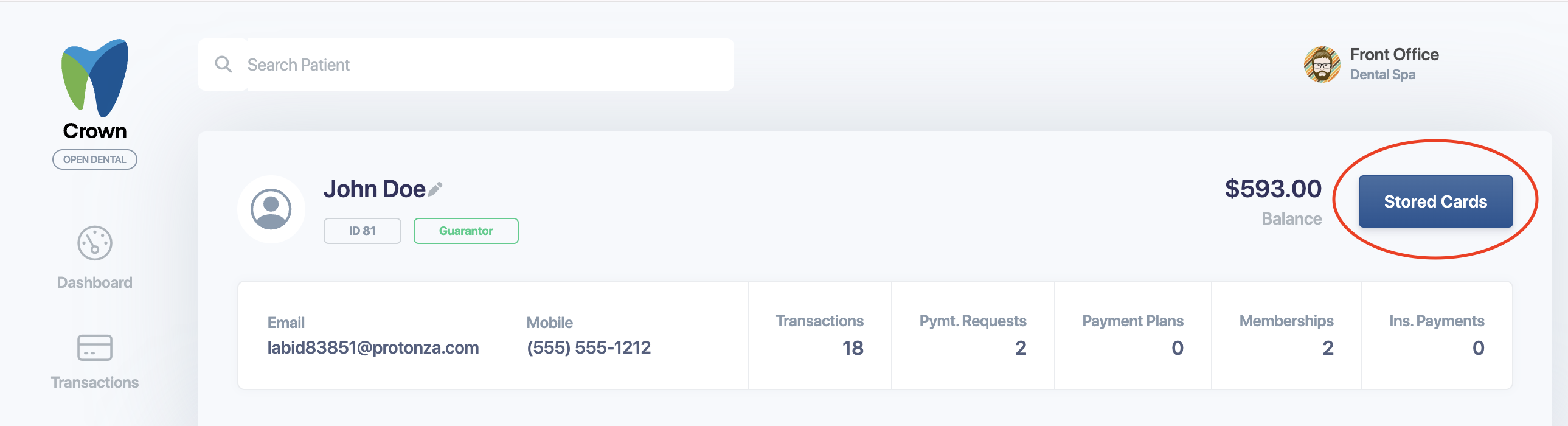
- Open the patient's profile in Crown.
- In the top-right corner, select Stored Cards. The window lists any cards already on file.
- Enter the details for a new card, or update an existing card.
- Select Add Card to save a new card.
Ask the patient to add their own card
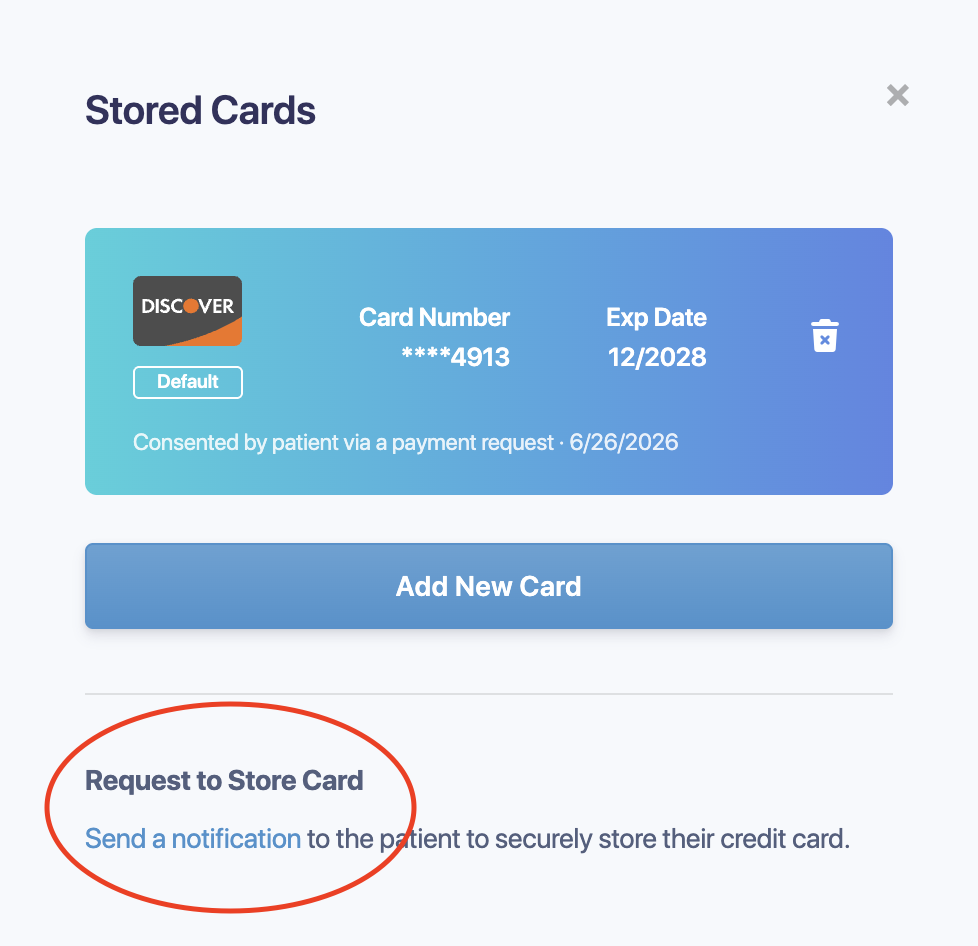
- Open the patient's profile and select Stored Cards.
- At the bottom of the window, select Send a Notification.
The patient gets a secure text message where they can enter their card details themselves. Once they save it, the card appears in their Stored Cards.
Save a card during a terminal payment
When you take a payment on your GoDaddy Poynt terminal, tap Ask to save card before the patient pays. Once the patient agrees on the terminal and the payment is approved, the card is added to their Stored Cards. If it's the first card saved for the patient, it becomes their default card.
This is available only for practices using Crown Connect. See Store a card from a terminal payment.
How stored cards are protected
Stored cards are tokenized, so the full card number is never shown. Only the last four digits and the expiration date appear on the patient's profile.