
You enroll patients from their profile in Crown Connect. Whenever possible, create memberships in Crown so they stay organized between Crown and your practice-management system.
Before you start
- Make sure the plan exists in Membership Administration. See Create and edit membership plans.
- A membership that covers several patients can include members of one family only, so each payment can be split correctly across the family's accounts.
Enroll a patient
- From the patient's profile, select the Membership tab.
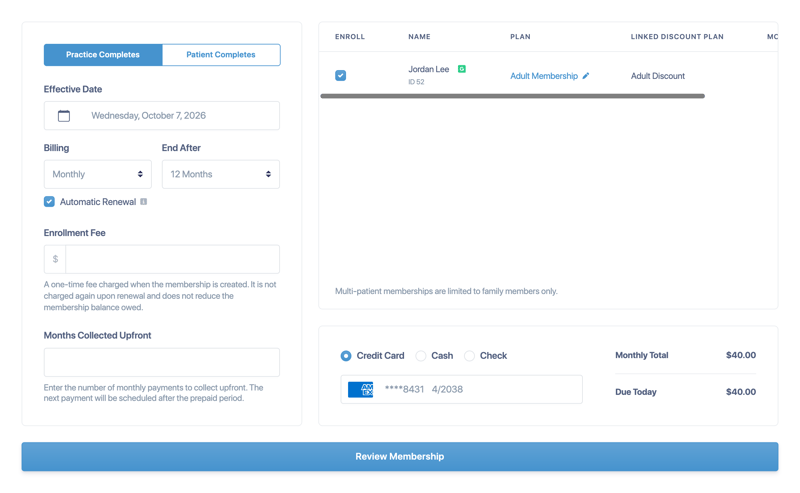
- Choose who completes the enrollment:
- Practice Completes: your office enters everything, including payment, and the patient signs in your office.
- Patient Completes: your office sets up the membership, and the patient adds their own payment details and signs the agreement in the patient portal.
- Choose the Effective Date. With Patient Completes, if the patient doesn't finish enrolling by this date, the effective date moves to the date they complete it.
- Choose Billing: Monthly or Yearly.
- For monthly billing, choose End After (1 to 12 months).
- Tick Automatic Renewal to renew the membership automatically on its term date. The patient is emailed before renewal.
- Optionally, enter an Enrollment Fee. It's charged once when the membership is created, isn't charged again at renewal, and doesn't reduce the membership balance.
- Optionally, for monthly billing, enter Months Collected Upfront: the number of monthly payments to collect today. The next payment is scheduled after the prepaid period.
- In the patient list on the right, tick each family member to enroll, then select Select Plan next to each one (see below).
- For Practice Completes, choose how the patient pays: Credit Card, Cash or Check (see below).
- Check the Monthly Total or Yearly Total and the amount Due Today, then select Review Membership.
Choose each patient's plan
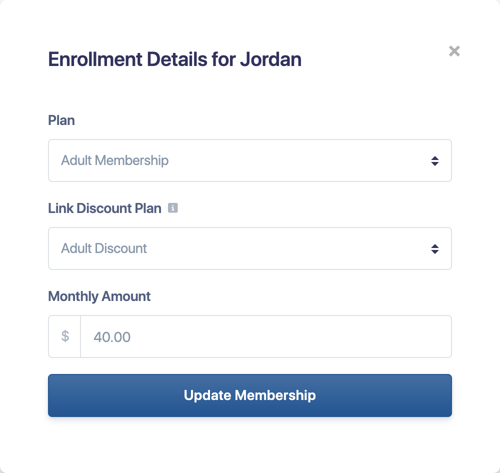
Selecting Select Plan opens Enrollment Details:
- Plan: plans the patient already has, or is scheduled to move to, are greyed out so you don't enroll them twice.
- Link Discount Plan: the Open Dental discount plan for this patient.
- Monthly Amount or Yearly Amount: filled in from the plan. If you change it, the membership has custom pricing and won't follow future plan price changes by default.
Select Update Membership to add the plan to the enrollment.
Payment options
- Credit Card: Choose a card stored on the patient's profile. It's charged automatically on each payment date.
- Cash: Payments are collected and recorded manually by your office. The patient is reminded before each scheduled payment.
- Check: Payments are recorded manually. Check numbers are saved with the enrollment.
Finish the enrollment
Practice Completes
Review the details with the patient. Select Print & Sign to print the agreement for the patient to sign in your office, then select Start Membership.
Patient Completes
The patient receives an email with their membership agreement attached as a PDF and a link to the patient portal. In the portal they:
- See exactly what they pay today: the enrollment fee, any months paid upfront and the total due at signing
- Can open a plan's name to see what it includes
- Sign the agreement (required before payment), then pay
- See a confirmation screen once payment succeeds. If a card is declined, the message appears next to the button they pressed.
Until the patient finishes, the membership shows as Pending. Enrollment invites use the patient's current email and mobile number.
Future start dates
When a membership starts on a future date, only the enrollment fee is charged today. The first membership payment runs on the effective date.
Good to know
- "Down Payment" is now called Enrollment Fee. Don't use it to record a payment you've already collected. Anything entered is charged when the membership is created.
- Terms longer than a month can renew automatically.
- Membership payments run at 8:00 AM in your practice's time zone.