
Membership plans are the options you offer patients, such as an Adult, Child or Perio plan. You create and edit plans in Membership Administration. Each plan has its own price, benefits and Open Dental settings.
Open Membership Administration
Select your name in the menu at the top right, then select Membership Administration. Your plans appear as cards. Use Active and Inactive at the top right to switch between current plans and plans you've removed.
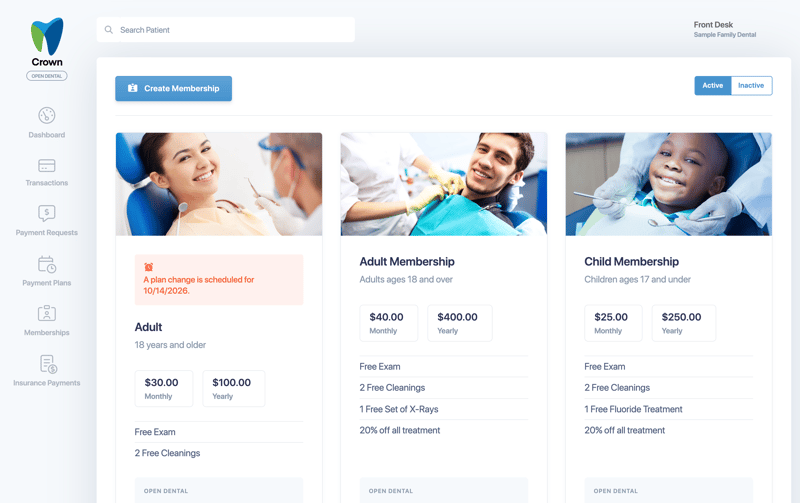
Create a plan
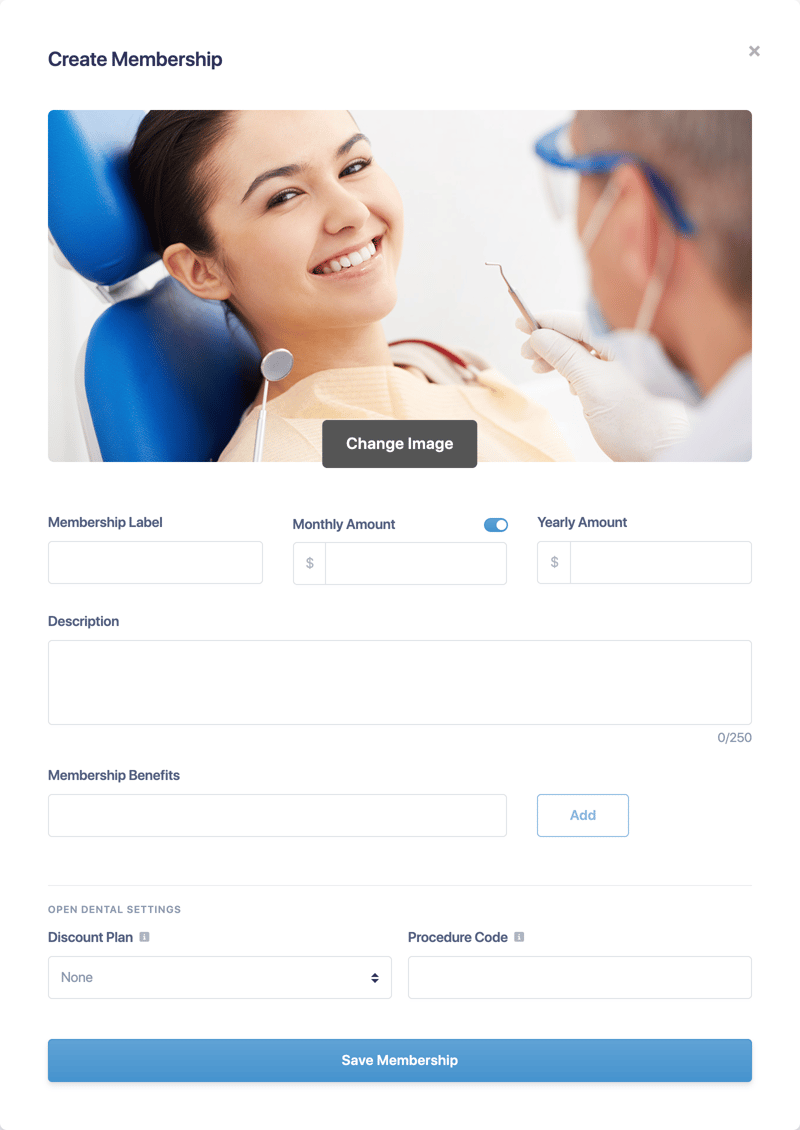
- Select Create Membership.
- Optionally, select Change Image to choose the picture patients see.
- Enter a Membership Label. This is the plan name patients see.
- Enter the Monthly Amount and Yearly Amount. To offer the plan yearly only, turn off the switch next to Monthly Amount.
- Enter a Description (up to 250 characters). For example, "Adults ages 18 and over."
- Under Membership Benefits, type each benefit and select Add. Drag benefits to reorder them, or select the trash icon to delete one.
- If you use Open Dental, complete Open Dental Settings (see below).
- Select Save Membership.
Open Dental Settings
- Discount Plan: links the plan to an Open Dental discount plan. Crown keeps each patient's discount plan dates current as their membership changes. See Memberships and Open Dental.
- Procedure Code: the offset procedure code used when membership payments are posted to Open Dental. Leave it blank to post payments without an offset. Codes that contain spaces are accepted.
Good to know: The offset procedure code used to be a single practice-wide setting. It now lives on each plan, and your existing code was copied to every plan.
Edit a plan
Select Edit Membership on the plan's card. This opens the Plan Change window, where you can update the plan and choose which existing members follow the change, either today or on a date you schedule.
See Change a plan's price for existing members for the full steps.
If a change is already scheduled, the card shows "A plan change is scheduled for [date]" and the button reads Edit Scheduled Change.
Remove or reactivate a plan
Removing a plan stops new enrollments in it. Existing memberships stay on the plan until you move them to another one. Removed plans appear under Inactive, where you can select Reactivate Membership to offer the plan again.