
Each membership has its own page in Crown Connect. From there you can take payments, change the card or payment date, set renewal options, change the patient's plan, and see a full history of what's changed.
Open a membership
- From Memberships in the left menu, select the patient's name. See Find, filter and export memberships.
- Or, from the patient's profile, select the Memberships count at the top, then select the membership.
The top of the page shows the Plan ID, Patient ID and status, followed by the effective date, billing, the next payment, the renewal or end date, and the payment method.
The Manage Plan menu
Select Manage Plan at the top right to see every action for the membership. The options depend on how the membership is paid and its status.
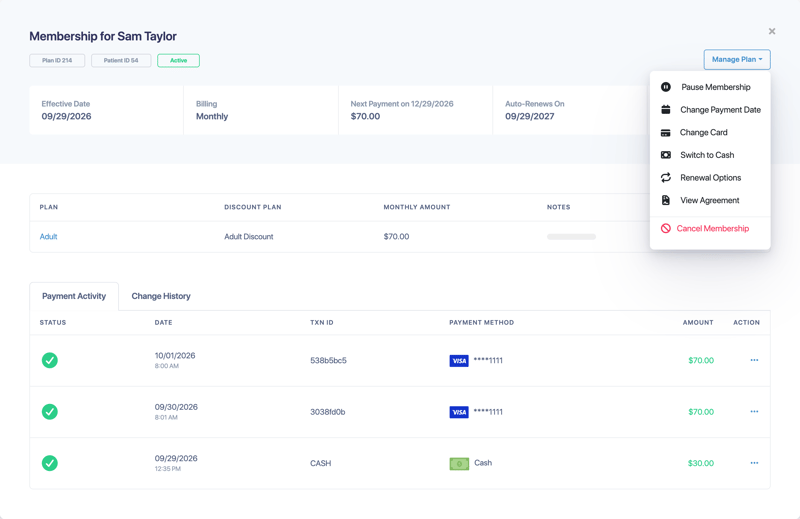
- Make a Payment: Take a payment by card, cash, check or adjustment. See Past-due memberships, payments and restarting.
- Pause Membership: Stops future billing until you resume it. Any past-due balance is still owed. You can add an optional reason.
- Resume Membership: Restarts billing for a paused membership. You can also select Resume on the paused banner.
- Change Payment Date: Moves the next payment to a new date. All remaining payments stay on their current schedule.
- Change Card: Charges a different stored card, or a new card, from now on.
- Switch to Cash: Stops automatic card charges. Your office records each payment.
- Automate with Card: For cash or check memberships: choose a stored card to bill automatically, add a new card, or send the patient a request to store their card securely.
- Renewal Options: Choose Let Expire or Auto-Renew, and set the Renewal Date.
- View Agreement: Email or print the patient's signed agreement.
- Cancel Membership: Cancels the membership. This takes effect immediately.
- Restart Membership: For canceled or suspended memberships. See Past-due memberships, payments and restarting.
Renewal options
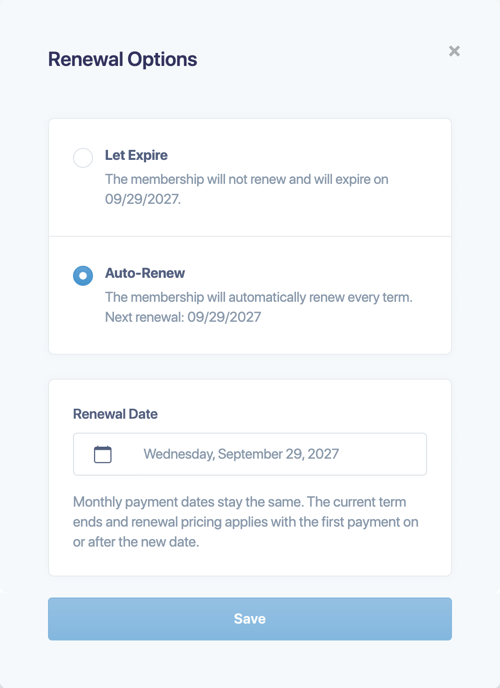
- Let Expire: the membership won't renew and expires on its term date.
- Auto-Renew: the membership renews automatically every term.
- Renewal Date: monthly payment dates stay the same. The current term ends, and renewal pricing applies with the first payment on or after the new date.
Change one patient's plan or price
To move a single patient to a different plan or change just their price:
- In the plan table on the membership page, select ... under Action, then select Update Plan.
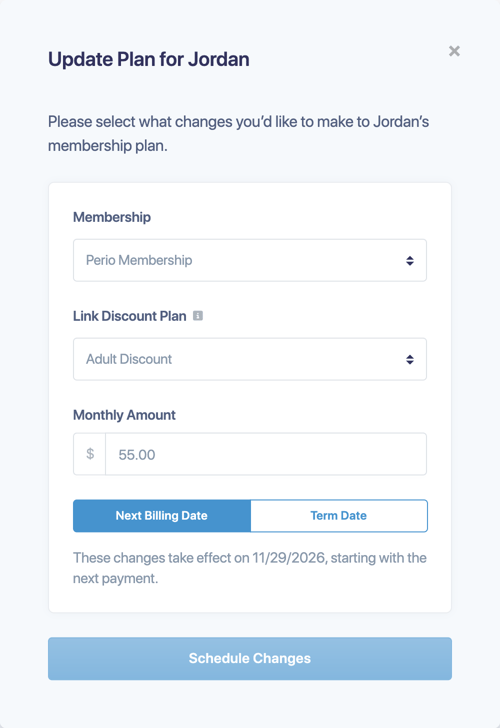
- Choose the Membership plan, Link Discount Plan, and the Monthly Amount or Yearly Amount.
- Choose when the change takes effect:
- Next Billing Date: starting with the next payment.
- Term Date: on the plan's term date. Payments until then stay on the current plan.
- Select Schedule Changes.
Once a change is scheduled:
- The plan table shows what will change and when, for example "Jordan's yearly price will change to $200.00 on 10/04/2027."
- An icon next to the patient's name in the membership list marks the scheduled change.
- To adjust or remove it before it happens, select ... on the plan row, then Edit Plan Change or Cancel Plan Change.
You can also schedule a patient's unenrollment.
Payment Activity and Change History
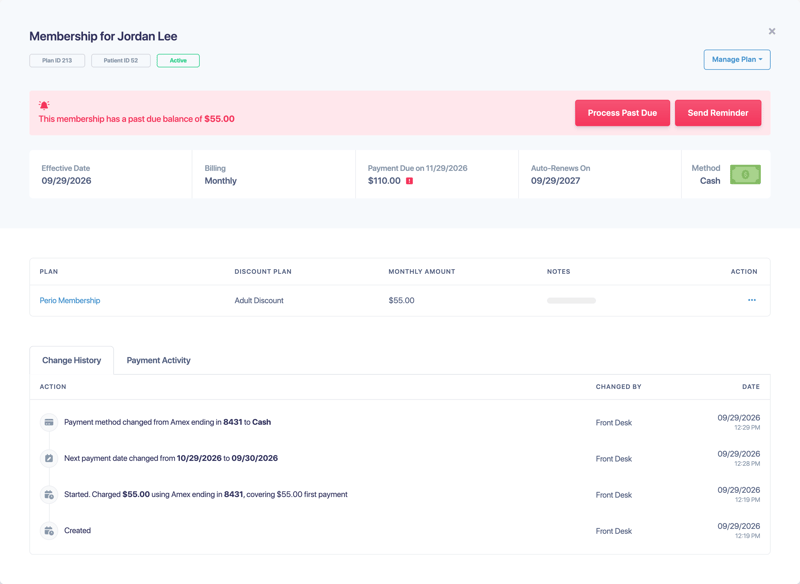
- Payment Activity lists every payment, refund, void and adjustment. Select ... on a row for Transaction Details (or Adjustment Details) and the Walkout Receipt.
- Change History lists each change in a plain sentence, such as a new payment method or payment date, with who made it and when.
Good to know
- Every membership payment sends the patient a receipt and, when payment posting is on, posts to your practice-management system the same way, however it was paid.
- Automatic charges are no longer labeled as made by the patient under Processed By.