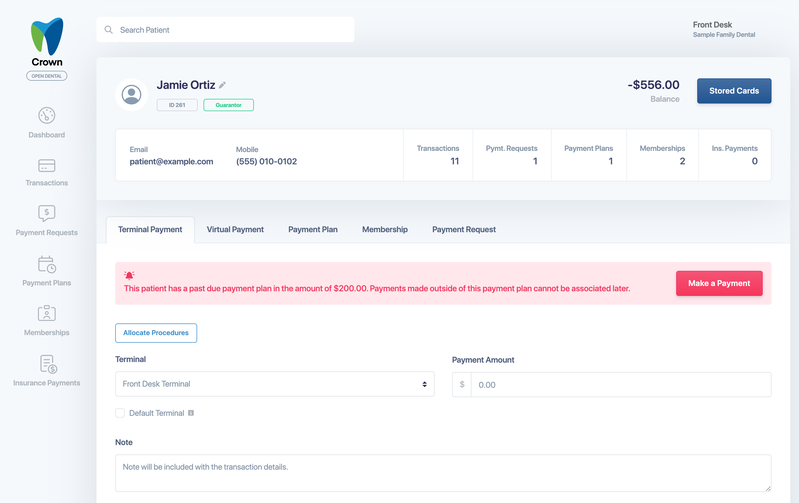
Open a patient's payment plan to see where it stands and to take a payment, change the card, adjust the schedule or cancel the plan.
Open a payment plan
On the patient's page, select Payment Plans, then select the plan. You can also open plans from the Payment Plans page. See Find and filter payment plans.
The plan shows its status, the plan total, payments received, the next payment, the balance, the card on file and progress. Two tabs show the details:
- Schedule: each payment with its date, amount, remaining balance and status.
- Authorization: for plans the patient approved electronically, the signed agreement and the date it was signed.
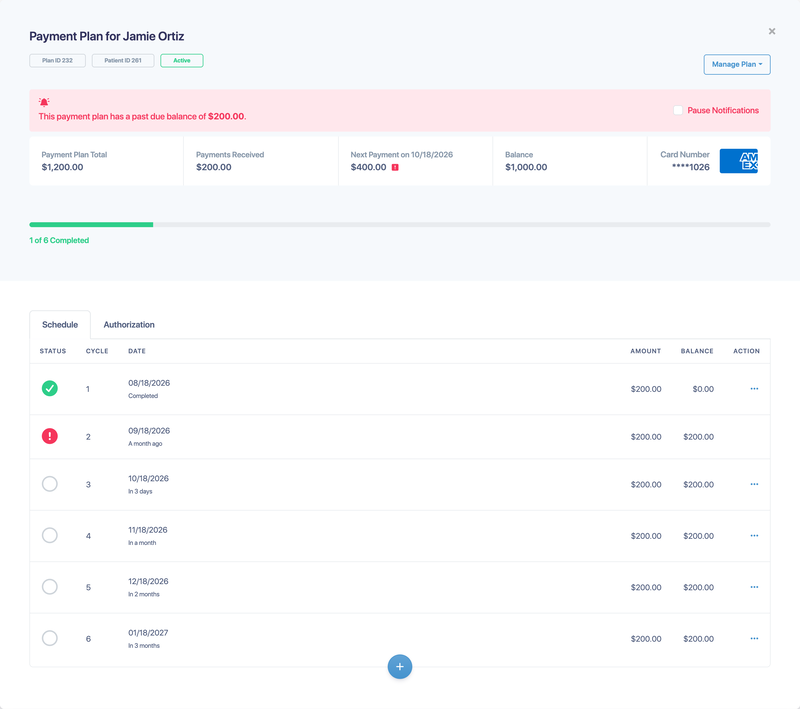
If a payment is past due, a banner shows the past-due balance. Depending on your Past Due Handling setting, the past-due amount is either added to the next payment or left outstanding. Hover over the icon next to the next payment to see what's included.
The Manage Plan menu
Select Manage Plan for these actions. The menu appears on active plans for users with permission to edit payment plans.
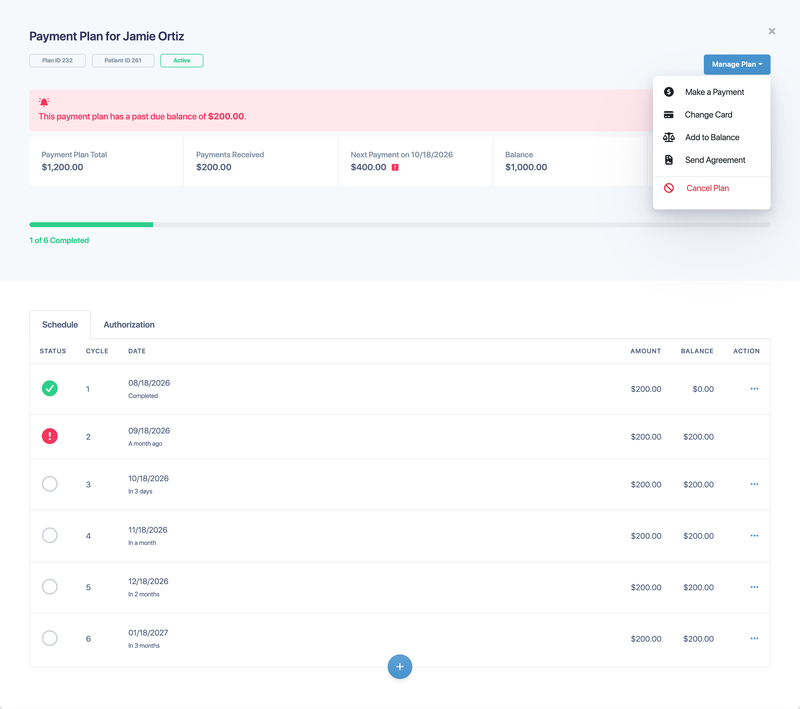
Make a Payment
- Choose the Transaction Type: Card on File (Credit Card on cash and check plans), Cash, Check or Adjustment. Adjustment isn't available on Open Dental plans.
- Choose how much to pay. The options depend on the plan:
- When the plan is past due: Past Due Balance, Past Due and Upcoming Cycle(s), Custom Amount or Remaining Balance.
- When it isn't past due: Custom Amount, Number of Cycles or Remaining Balance.
- Choose Remaining Balance to pay off the plan.
- The schedule on the right shows which payments will be covered. Add a Note if you like, then select Process Payment.
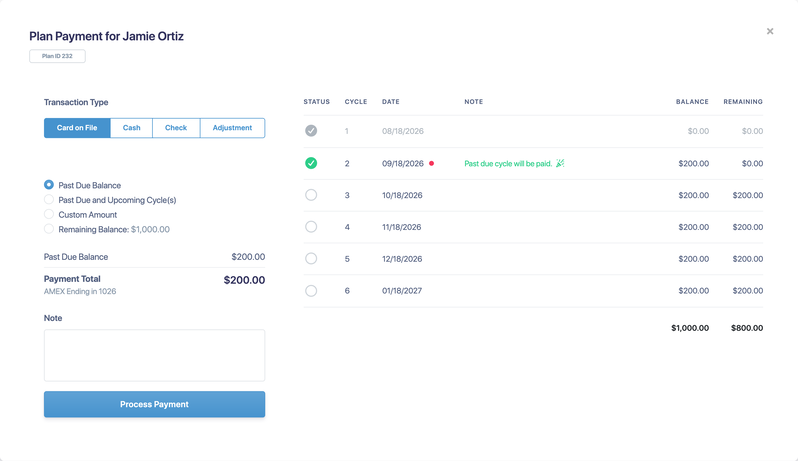
When the balance reaches zero, the plan is completed automatically. On a cash or check plan, a one-time card payment doesn't switch the plan to automatic billing.
Change Card
Choose another stored card for future payments, add a new card, or send the patient a request to store their card securely. On a cash or check plan, this option is Automate with Card, which switches the plan to automatic card billing.
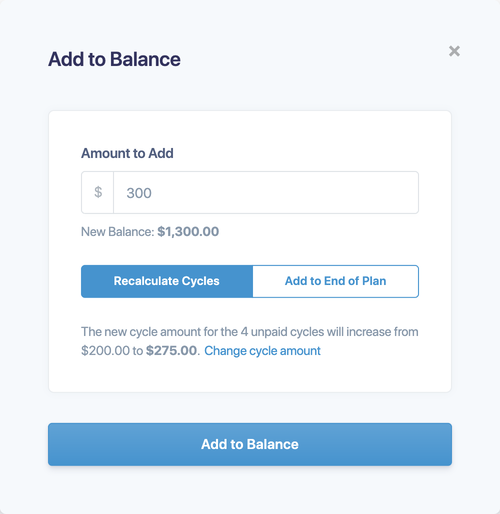
Add to Balance
Available on Crown-managed plans. Add a new charge to the plan, such as additional treatment. Enter the Amount to Add, then choose:
- Recalculate Cycles: spread the amount across the remaining unpaid payments. Crown shows the new payment amount.
- Add to End of Plan: add a new payment for this amount after the last one.
Send Agreement
Send the patient a copy of their payment plan agreement.
Cancel Plan
Stop all future payments. Canceled payment plans can't be reopened, so you'd need to create a new plan if the patient wants to continue.
Change one payment
On the Schedule tab, select ... on an upcoming payment:
- Edit: change the date or amount of a scheduled, unpaid payment.
- Skip Payment: available on the next upcoming payment. It's skipped and added as a new payment at the end of the plan.
On a paid payment, select Payment Activity to see the transactions behind it.
Pause reminders
Check Pause Notifications to stop past-due reminders for this plan. Scheduled payments still run.
Payments made outside the plan
When a patient has a past-due payment plan, their page shows a warning with a Make a Payment button. Use it to apply the payment to the plan. Payments taken on the Terminal Payment or Virtual Payment tab can't be linked to the plan later.