
If your practice is connected to Open Dental, membership activity flows into it automatically: payments, adjustments, chart notes and discount plan dates. This article explains each connection and where to set it up.
Post membership payments
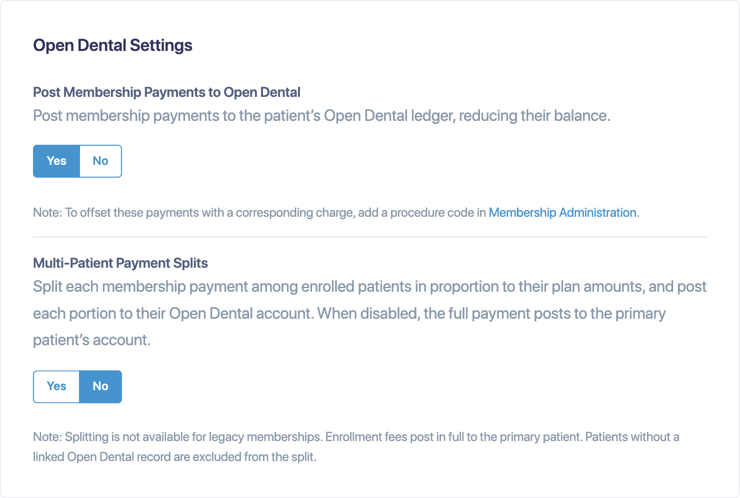
Turn on Post Membership Payments to Open Dental in Settings > Memberships > General Settings. Each membership payment then posts to the patient's Open Dental ledger, reducing their balance. This setting moved here from the Open Dental settings tab.
Offset procedure codes
To offset membership payments with a matching charge, so they don't reduce the patient's balance, add a Procedure Code to each plan in Membership Administration. Leave it blank to post payments without an offset. See Create and edit membership plans.
Split payments across a family
Turn on Multi-Patient Payment Splits to split each payment among the family members on a membership, in proportion to their plan amounts. Each share posts to that patient's account. When it's off, the full payment posts to the primary patient.
- Enrollment fees always post in full to the primary patient.
- Patients without a linked Open Dental record are left out of the split.
- Splitting isn't available for legacy memberships, including existing multi-patient memberships whose patients aren't all in one family.
Adjustments and voids
Membership adjustments post to Open Dental as adjustments. Choose the types to use in Settings > Open Dental > Membership Adjustments:
- Adjustments: choose a negative (−) adjustment type, because a membership adjustment reduces the patient's balance.
- Voids: choose a positive (+) adjustment type, because voiding an adjustment adds the amount back.
Commlogs
Membership changes add a commlog to the patient's chart in Open Dental.
Keep discount plan dates in sync
Link a membership plan to an Open Dental discount plan, and Crown Connect keeps each patient's discount plan dates current as their membership changes.
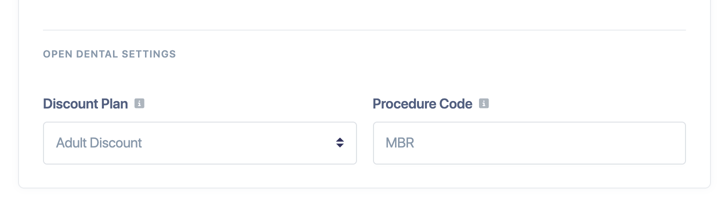
To link one, open Membership Administration, select Edit Membership on the plan, and choose a Discount Plan under Open Dental Settings. You can also choose a discount plan for an individual patient when you enroll them.
Each patient's discount plan starts on the membership's start date. Its term date follows the membership's status:
- Active: The membership's end date, or its next billing date if it has no end date
- Past due, within the grace period: The last day of the grace period
- Suspended: The day it was suspended
- Paused: The day it was paused
- Canceled: The day it was canceled. If it was suspended first, the day it was suspended.
- Expired: The membership's end date
- Ongoing: The date the membership is paid through
- When a membership renews, the term date moves forward once the renewal payment is approved.
- If Suspend After Declined Payments is off, a past-due membership keeps its original end date, so its discount plan stays in effect until then.
- Restarting a membership sets it back to Active and updates the term date to match.
Family-only multi-patient memberships
A membership that covers several patients can now include members of one family only. Previously, you could add any patients to one membership. Existing multi-patient memberships that aren't a single family keep working, but payment splits don't apply to them: each payment posts in full to the primary patient, even when Multi-Patient Payment Splits is on.