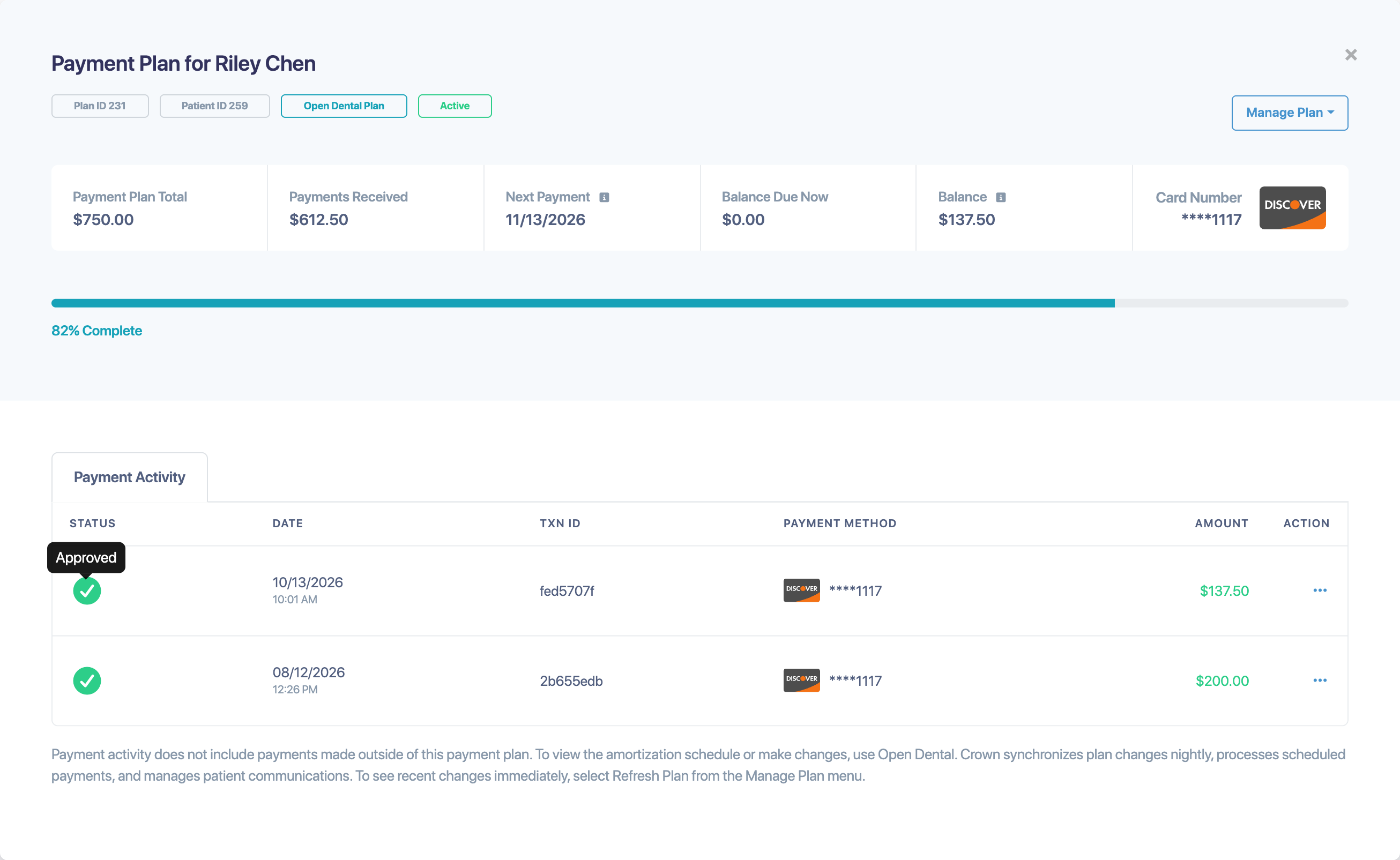
If your practice uses Open Dental, you can create a payment plan in Open Dental and import it into Crown Connect. Crown then monitors the plan for changes, processes the scheduled payments, and manages patient communications.
Crown-managed or Open Dental plan?
- Open Dental Plan: you build and change the plan in Open Dental. Crown follows it and collects the payments.
- Crown-Managed Plan: you build and change the plan in Crown. No matching plan is created in Open Dental, and payments post to the patient's ledger only. See Create a payment plan.
Which options you see depends on how your practice is set up.
Import an Open Dental payment plan
- Create the payment plan in Open Dental.
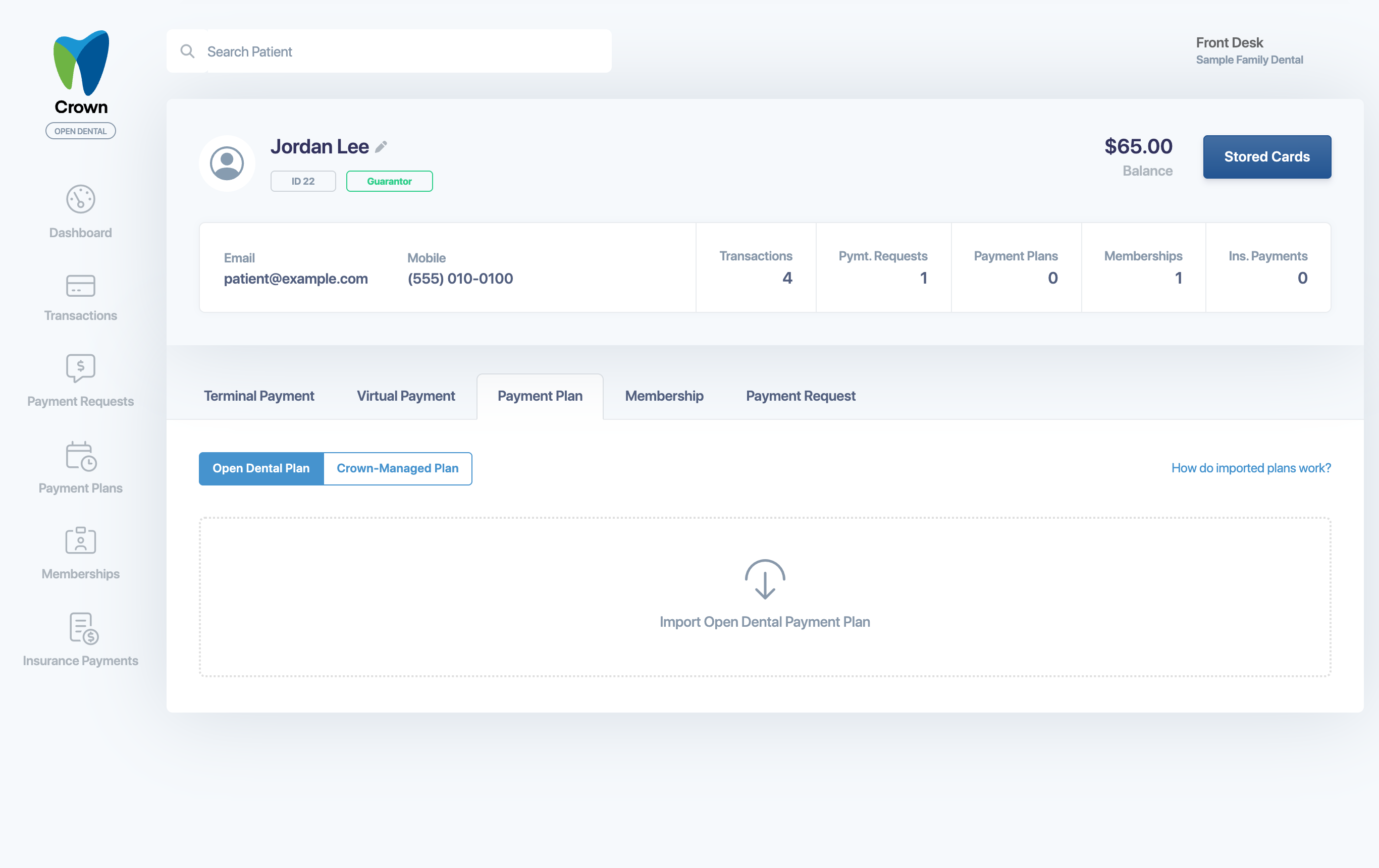
- In Crown, from the patient's profile, select the Payment Plan tab.
- Select Open Dental Plan, then Import Open Dental Payment Plan.
- Choose the plan from the list. If you don't see it, select the refresh button.
- Select Choose Plan, then follow the prompts to finish setting up the plan in Crown.
For help creating plans in Open Dental, see Open Dental's dynamic payment plan guide.
How Open Dental plans work in Crown
- Crown syncs plan changes from Open Dental nightly. To see recent changes right away, open the plan and select Manage Plan > Refresh Plan.
- The plan shows Payment Activity instead of a schedule. To see the amortization schedule or change the plan, use Open Dental.
- Payment activity only includes payments made through the plan.
- Manage Plan > Make a Payment is available when the plan has a balance due now, or when your practice allows prepayments. The amount may be limited to what's currently owed. Choose Balance Due Now, Total Balance or Custom Amount.
- If a plan is closed in Open Dental, Crown updates it to match.
- Canceling a plan in Crown also closes it in Open Dental.