
Membership Settings control how memberships bill, remind patients, handle declined payments and post to Open Dental. They apply to every membership in your practice.
Open Membership Settings
- Select your name in the menu at the top right, then select Settings.
- Select the Memberships tab. General Settings opens.
- Make your changes, then select Save Membership Settings at the bottom of the page.
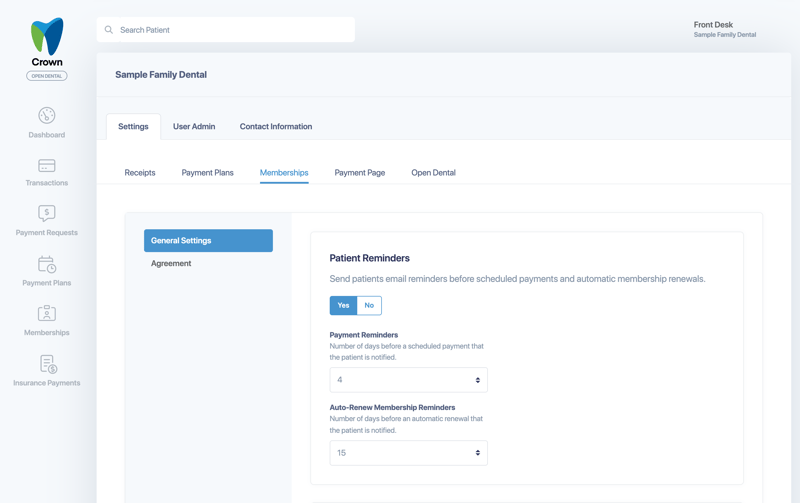
Patient Reminders
Turn on Patient Reminders to email patients before payments and renewals.
- Payment Reminders: how many days (1 to 6) before a scheduled payment the patient is notified.
- Auto-Renew Membership Reminders: how many days (1 to 6, 15, 30, 45 or 90) before an automatic renewal the patient is notified.
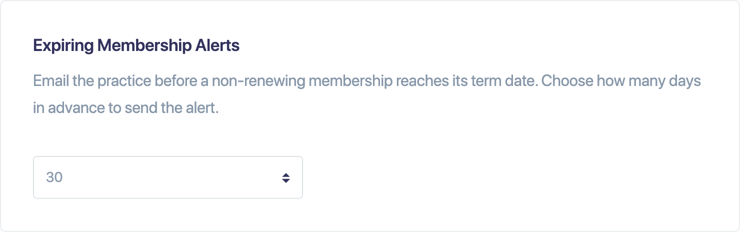
Expiring Membership Alerts
Emails your office before a membership that doesn't auto-renew reaches its term date, so you can renew it in time. Choose how many days in advance to send the alert.
Open Dental Settings
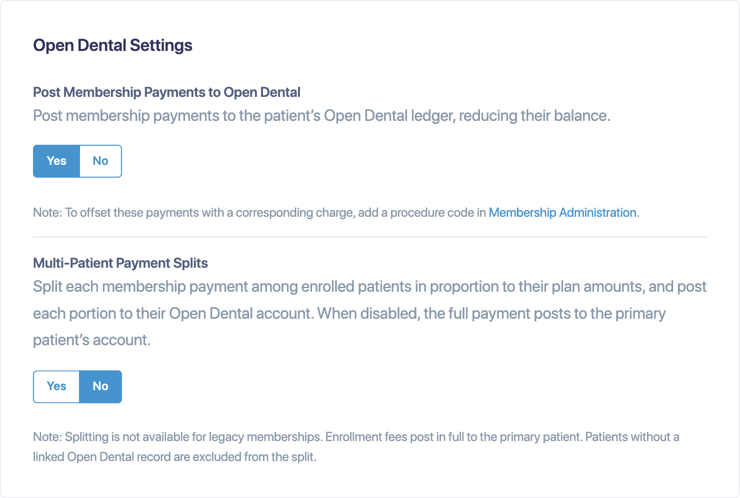
These appear for practices connected to Open Dental.
- Post Membership Payments to Open Dental: posts each membership payment to the patient's Open Dental ledger.
- Multi-Patient Payment Splits: splits each payment among the patients on a family membership.
For how posting, offset procedure codes and splits work, see Memberships and Open Dental.
Suspend After Declined Payments
After a declined payment, the membership is marked past due at 7:00 PM that day, and a note is added to the patient's chart. This setting decides what happens next.
- Yes: The membership is suspended after the grace period below. You can restart it later.
- No (default): The membership stays active and past due, keeps its original term end date, and keeps building a balance until payment is collected.
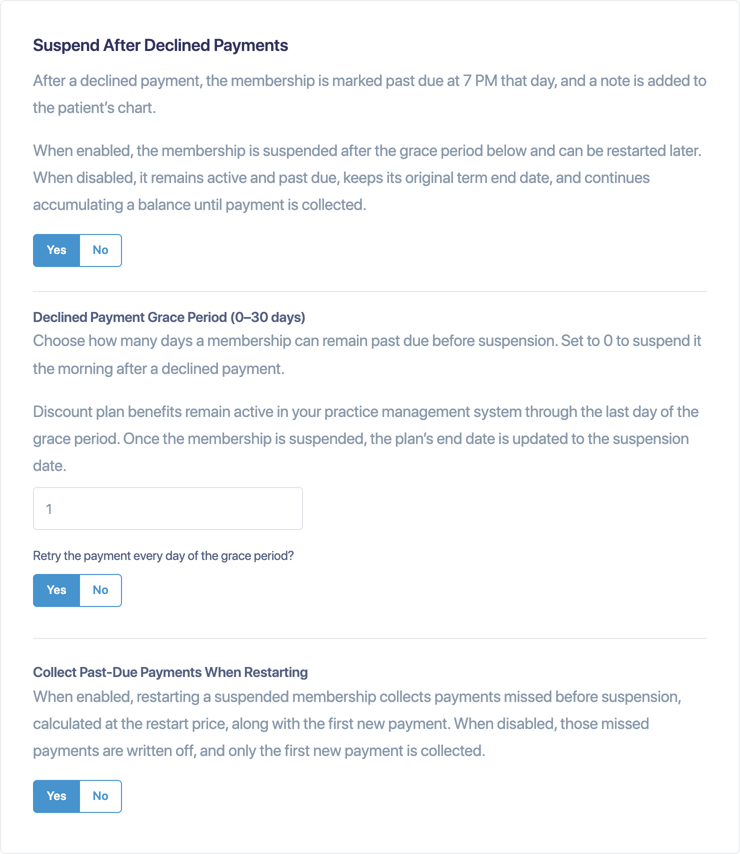
When suspension is on, you'll also see:
- Declined Payment Grace Period (0 to 30 days): how long a membership can stay past due before it's suspended. Enter 0 to suspend it the morning after a declined payment. Discount plan benefits stay active in your practice-management system through the last day of the grace period. Once the membership is suspended, the discount plan's end date is updated to the suspension date.
- Retry the payment every day of the grace period? Choose Yes to try the card again automatically each day while the membership is past due.
Collect Past-Due Payments When Restarting
- Yes: Crown collects the payments missed before suspension, at the restart price, along with the first new payment.
- No: The missed payments are written off. Only the first new payment is collected.
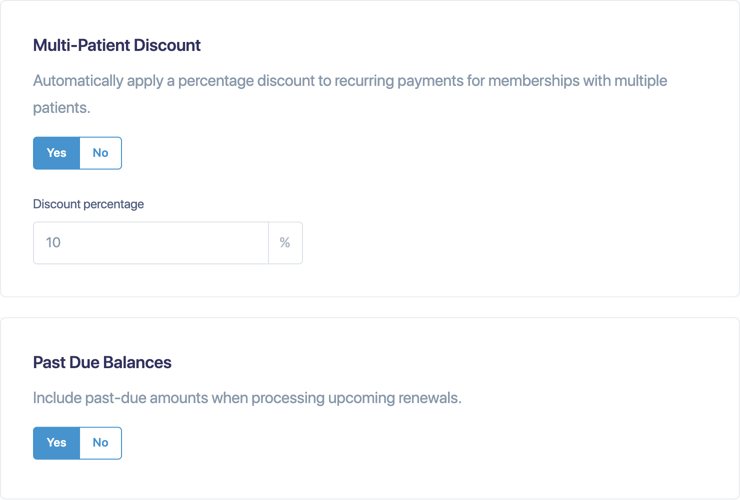
Multi-Patient Discount
Automatically takes a percentage off recurring payments for memberships that cover more than one patient. Turn it on and enter the Discount percentage.
When you change the rate, choose whether it applies to New memberships only or to New and existing memberships.
Past Due Balances
When this is on, past-due amounts are included when an upcoming renewal is processed. Your existing choice carried over with this release.
Related settings
- Agreement: the Agreement tab on the same page. See Customize your membership agreement.
- Plan-level options, such as yearly-only billing and the Open Dental offset procedure code, are in Membership Administration. See Create and edit membership plans.