
Send a payment from Crown Connect to your GoDaddy Poynt terminal, and the patient taps, inserts or swipes their card at the front desk. Crown records the payment on the patient's account and posts it to your practice-management system for you.
Before you start
- Your terminal must be turned on, connected to the internet and activated on your GoDaddy merchant account.
- Find the patient using Search Patient at the top of Crown Connect.
Send a payment to the terminal
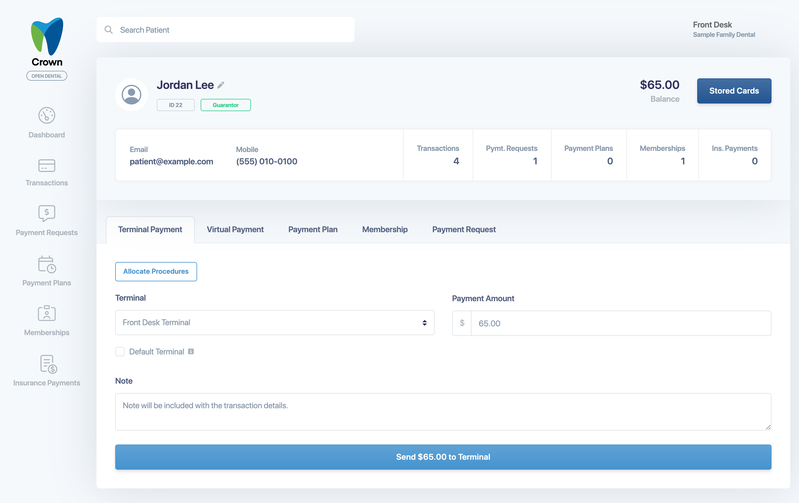
- From the patient's profile, select the Terminal Payment tab.
- Choose the Terminal. If your practice has only one terminal, it's selected for you.
- Check the Payment Amount. It's filled in with the patient's balance when they owe one, and you can change it.
- Optional: select Allocate Procedures to apply the payment to specific procedures. See Apply a payment to procedures.
- Optional: add a Note. It's saved with the transaction details.
- Select Send $X to Terminal, then hand the terminal to the patient.
Set a default terminal
If you have more than one terminal, check Default Terminal to have Crown pick the selected terminal automatically next time. The default is saved on the computer you're using, so each front-desk computer can have its own default terminal.
While the patient pays
Crown shows Sending to Terminal, then Waiting for Payment. To stop the payment, press Cancel on the terminal. Crown then shows that the transaction was canceled.
When the payment finishes, you'll see one of these results:
- Transaction Approved: the card was charged. The transaction ID is shown, and the card brand and last 4 digits are saved with the payment.
- Cash Transaction Completed or Check Transaction Completed: the payment was recorded as cash or check on the terminal.
- Transaction Declined: the card was declined, with the reason from the card processor. Nothing is posted to your practice-management system. Ask the patient for another card and send the payment again.
- Partial Amount Approved: the card covered only part of the amount. Crown offers to send the rest to the terminal so the patient can pay it with another card.
- Payments Processed: the patient split the payment across more than one card. Crown lists each transaction and the total.
If the terminal stops responding
Crown waits up to 3 minutes for the terminal. If it doesn't hear back, it shows Terminal Not Responding. Don't send the payment again straight away. Check your transactions in your GoDaddy merchant account first. If the payment went through, Crown recovers it automatically and posts it to your practice-management system. For connection problems, see Terminal troubleshooting.
Receipts
How the patient gets a receipt depends on your Terminal Receipts setting: Crown can email it automatically, the terminal can offer print, email or text, or both. See Choose how terminal receipts are sent.
Save the patient's card
To save the patient's card for future payments, tap Ask to save card on the terminal before the patient pays. Once the patient agrees and the payment is approved, Crown adds the card to their Stored Cards. See Store a card from a terminal payment.
How the payment posts to your practice-management system
- If you allocated procedures, the payment posts to those procedures. Treatment-planned procedures post as a prepayment.
- Otherwise, it posts as an unallocated payment.
- If the patient splits the payment across cards, the payment posts as a prepayment, and you'll need to allocate it manually in your practice-management system. Crown shows a reminder when this happens.
- If the amount approved is different from the amount you sent, the payment posts as unallocated, and you'll need to allocate it manually.
- If your practice surcharges cards, the surcharge posts separately using your surcharge procedure code.
Payments taken directly on the terminal, without sending them from Crown, aren't linked to a patient. See Match an unassociated payment to a patient.